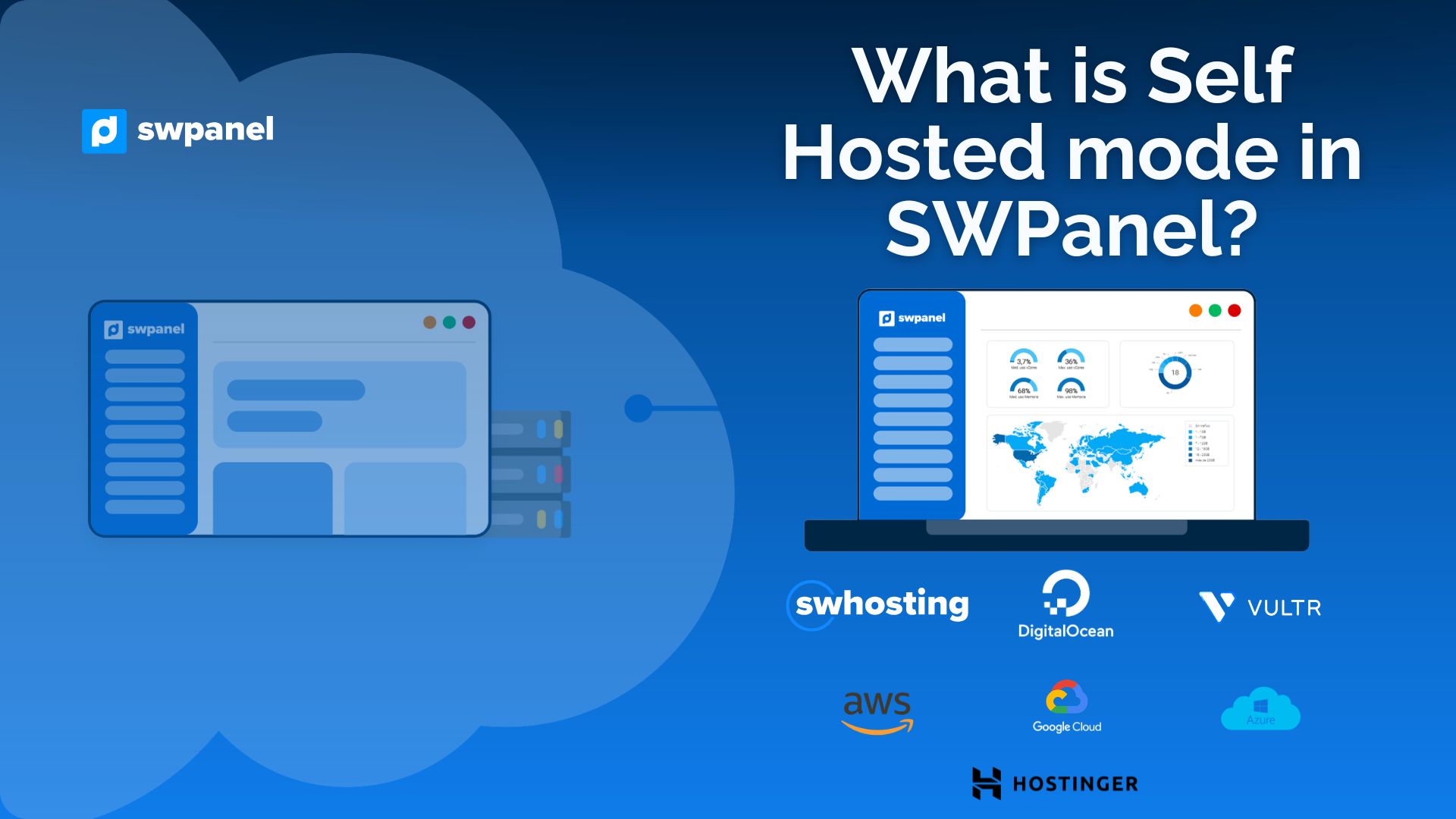
What is Self Hosted mode in SWPanel?
Self-Hosted on SWPanel is a mode in which you install and run the panel directly on your own server (VPS, dedicated server, or cloud), rather than using a version managed by the cloud provider.
This gives you full control over the infrastructure, the environment, and how the panel integrates with your services.
How exactly does it work?
1. Have your own server
You need a server running Linux Debian 12 or higher. It can be:
- Cloud Server
- VPS
- Dedicated server
The server must be active and connected to the Internet.
2. Installing SWPanel on your server
There are two main installation methods:
Automatic/assisted installation
SWPanel can be installed automatically from your web panel. You only need to provide:
- Server's public IP
- SSH port (usually 22)
- Root password
The platform will validate the connection and perform the installation without the need to execute commands manually.
Manual installation
If you prefer to perform the installation directly from your server, follow these steps:
Step 1: Prepare the system
The system update and installation must be performed as the root user.
Note on commands
- Commands beginning with
$are executed as a non-privileged user. - Commands beginning with
#are executed as root.
To switch to root from a non-privileged user:
$ sudo su -
⚠ This command grants full access to the root user and loads their environment, which is necessary for the installation.
Preliminary checks
Before linking the licence and starting the installation, check the following:
1. Internet connectivity
$ ping -c 4 google.com
If you receive a response, the server is correctly connected.
2. Port 3203 available
Before installation, port 3203 must be free (although it will appear closed because the service is not yet active).
To verify this:
# ss -tulnp | grep 3203
- If no results appear → the port is free.
- If any services appear → identify the PID and stop the process:
# kill PID_DEL_PROCESO
3. Network with NAT (if applicable)
If your server is behind NAT, you must redirect port 3203 to the server.
4. Firewall and security
Ensure that no firewall or security system is blocking SWPanel requests. The IPs making the requests belong to the range:
81.25.112.X
Step 2: Install SWPanel
Access your Linux server console and run:
# wget -qO - https://deployment.swpanel.com/install.sh | bash
When running the script:
- A warning will appear on the screen.
- You must type
yesand press Enter to continue.
⚠ If you do not type yes, the process will be cancelled and no changes will be made to the server.
During installation:
- The session may be temporarily closed.
- Access to the server will be blocked while the process is completed.
- Once finished, the system will automatically unlock.
When finished, an Installation Token will be generated, which you will use to link the server to your account.
3. Activate and link your Self Hosted licence
Once SWPanel is installed:
- Access the panel.
- Activate Self Hosted mode.
- Enter the previously generated Installation Token.
This will link the server to your account and enable the panel features according to your licence.
What changes compared to the Cloud version?
In the Cloud version:
- You manage the operating system.
- You manage security, updates, and backups.
- You manage when to scale server resources.
In Self Hosted mode, all of this is managed by the provider, so you are limited when it comes to scaling resources.
Licence types
Currently, SWPanel Self Hosted uses three licence types:
- D10
- D30
- WHA
Advantages of Self-Hosted
- Full control over the environment
- Freedom to choose provider (DigitalOcean, AWS, etc.)
- Ideal for businesses and hosting providers
- Allows deep integration with your own infrastructure
- Possibility of local customisation
Important considerations
⚠ Requires technical knowledge or a system administrator. ⚠ You are responsible for server security and maintenance. ⚠ You must manage updates and backups yourself.
In summary
SWPanel's Self Hosted mode allows you to install the panel directly on a server that you choose and manage.
Once installed and activated with your licence, you will be able to manage hosting services, domains, users, and billing from your own environment, with full control over the infrastructure.