Activate backups in my Cloud
The SW Hosting backup service allows you to create backups on SWPanel's backup servers, so that you can restore your content whenever necessary.
Having a clear backup plan will be useful in various situations, for example: if changes are made to your website that, due to programming errors, slow it down; if your site has been compromised by hackers who alter the code; or if an update to your CMS (Content Management System) fails. In these cases, you’ll be able to quickly restore your website and protect your reputation.
Enabling and Configuring Cloud Backups via the Control Panel (SWPanel)
In the top box of the SWPanel, enter the server name for which you wish to enable the backup.
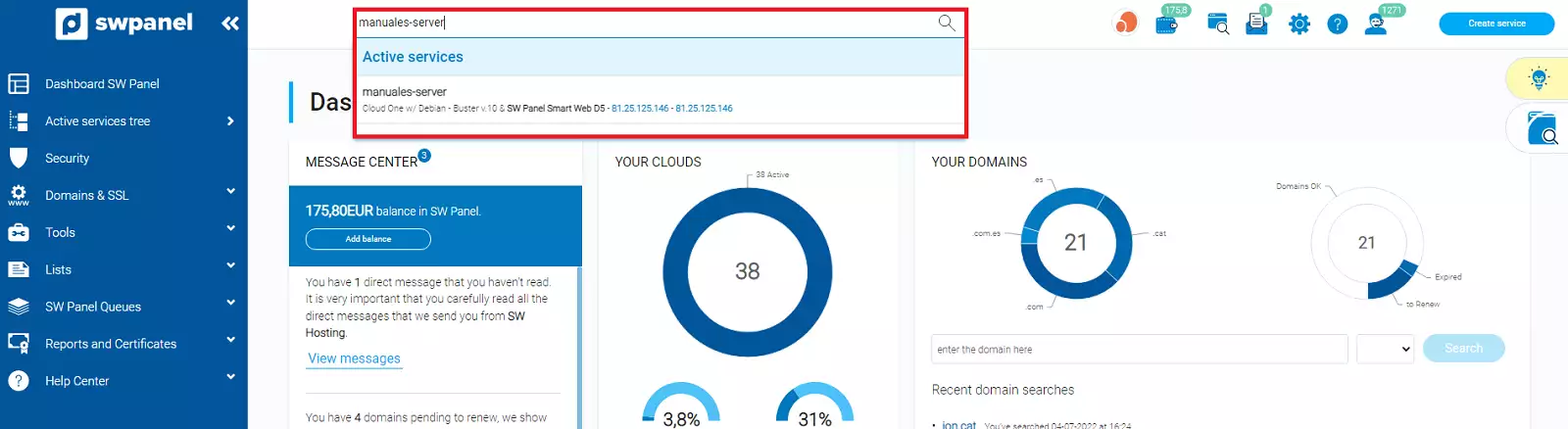
info_capture ℹ️ Note: This screenshot is for illustrative purposes only and was taken from version 2026.000.0023 dated 08/03/2026. It may differ from the current version of SWPanel.
To enable backups:
- In the SWPanel, scroll down to the bottom right to the Data Retention section.
- Within this section, you will find the Backups option.
- Click the button in the Backups section.
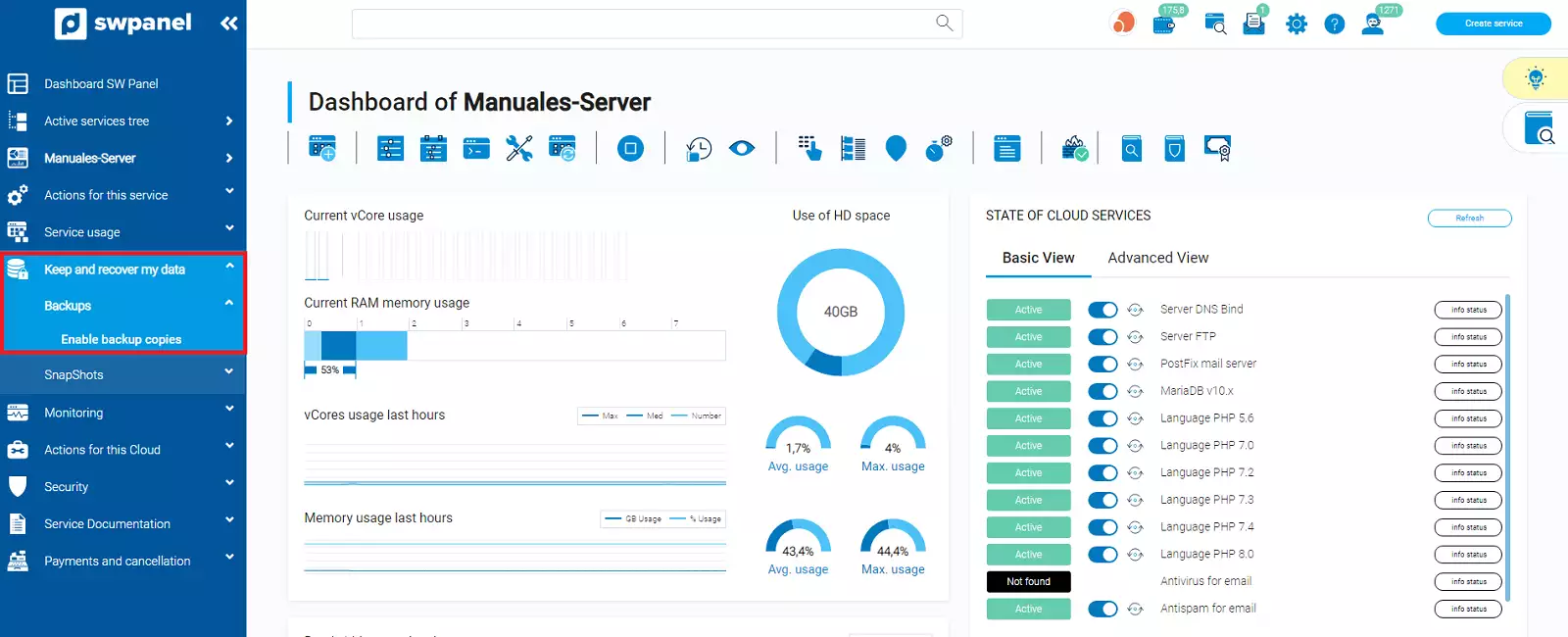
info_capture ℹ️ Note: This screenshot is for illustrative purposes only and was taken from version 2026.000.0023 dated 08/03/2026. It may differ from the current version of SWPanel.
To enable backups on your server, you need to set three parameters:
-
Backup location: Select the data centre where you want your backup to be stored. Please note that enabling backups in some data centres may incur an additional monthly charge.
Available options:
- Spain/DC1 – Spain
- Spain/DC2 – Spain
- Sajonia/DC3 – Germany
- East USA/DC4 – United States of America
- London/DC5 – United Kingdom
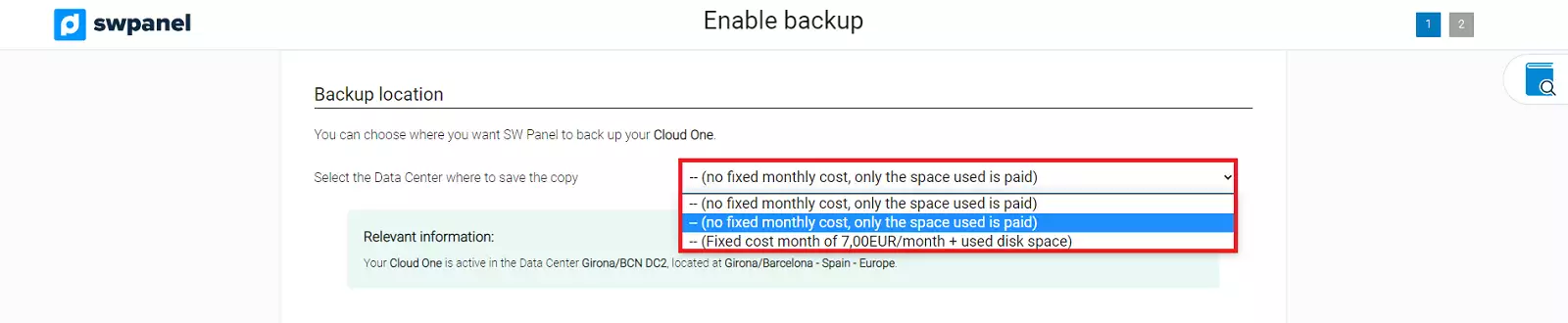
info_capture ℹ️ Note: This screenshot is for illustrative purposes only and was taken from version 2026.000.0023 dated 08/03/2026. It may differ from the current version of SWPanel.
- Retention period
Specify how many days you want the backups to be retained.
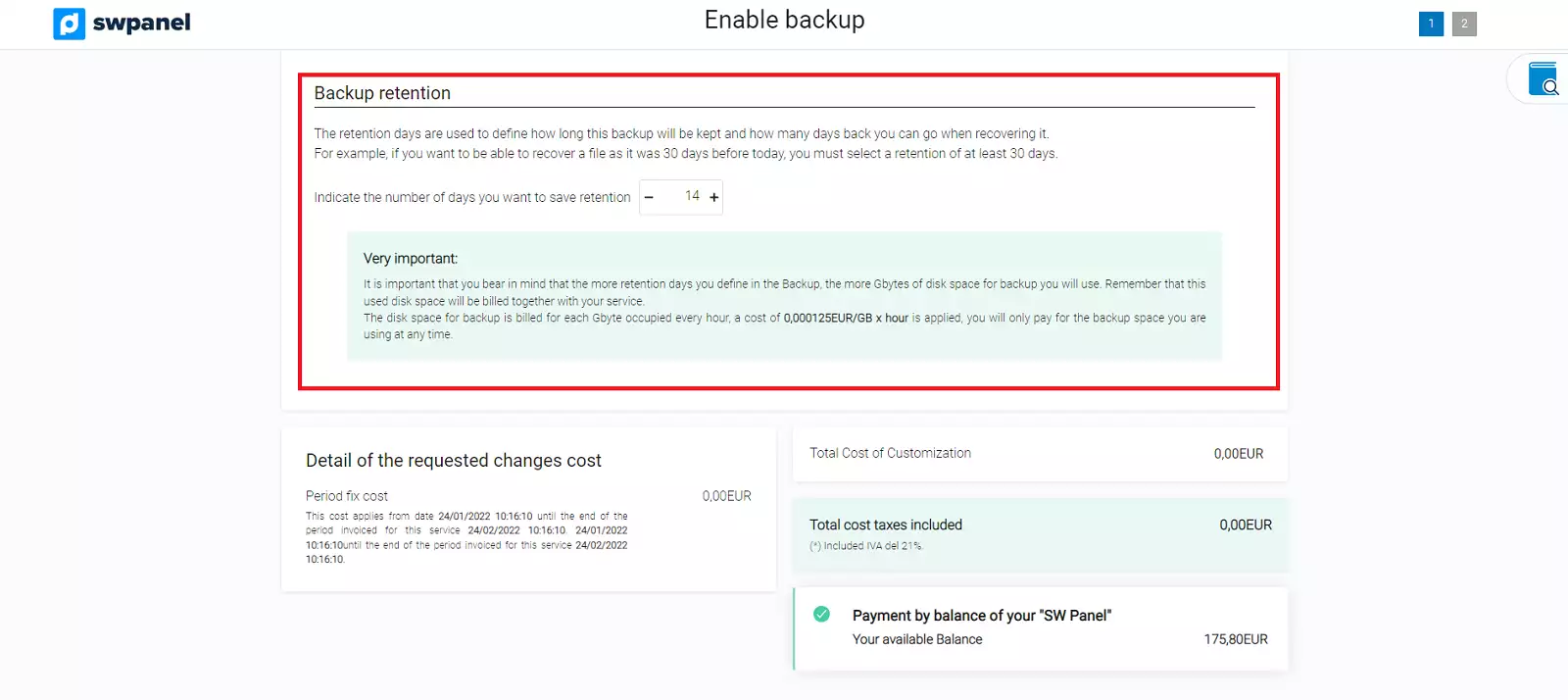
info_capture ℹ️ Note: This screenshot is for illustrative purposes only and was taken from version 2026.000.0023 dated 08/03/2026. It may differ from the current version of SWPanel.
- Backup configuration
Specify how the backup will be configured, according to your requirements.
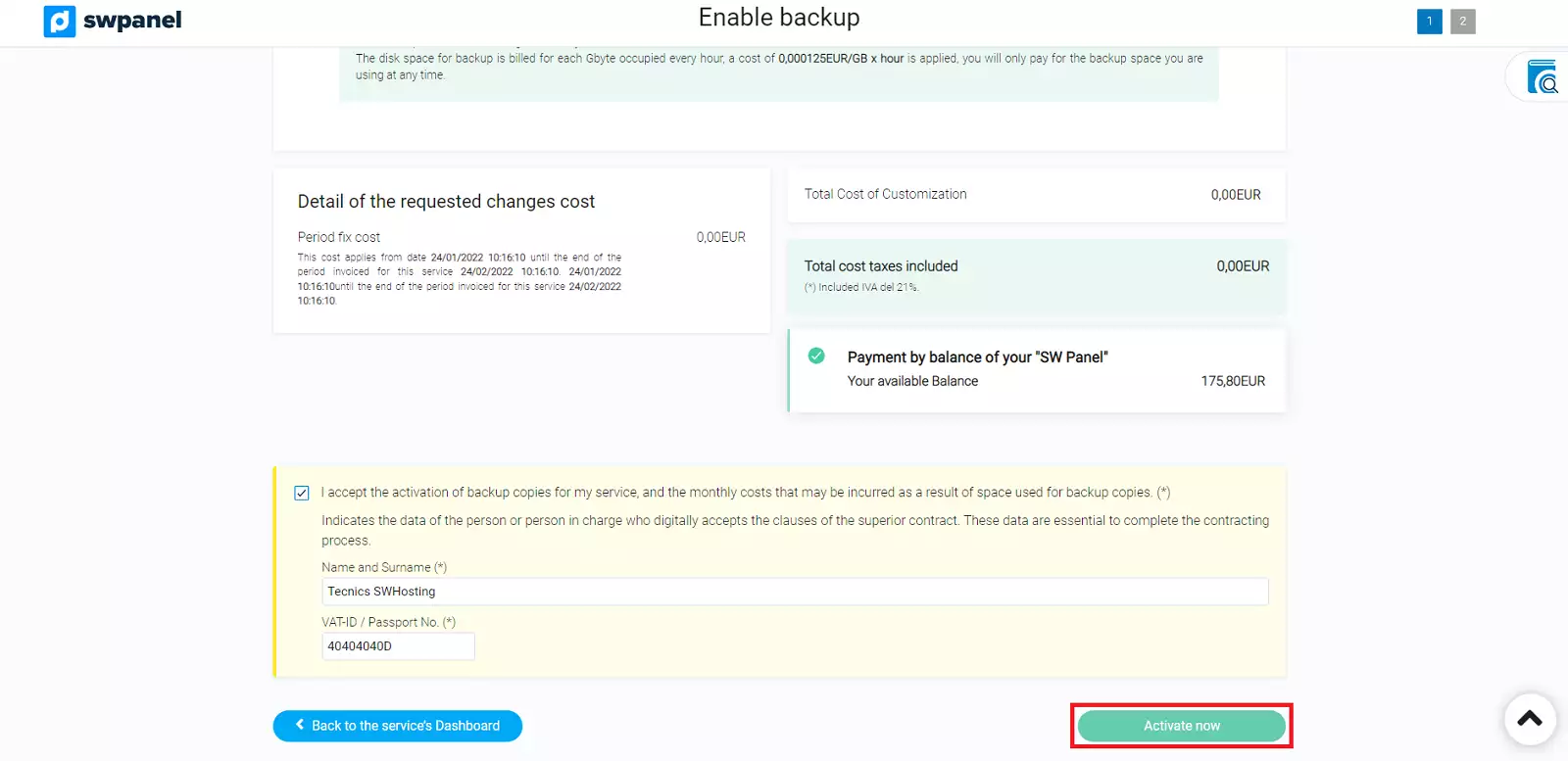
info_capture ℹ️ Note: This screenshot is for illustrative purposes only and was taken from version 2026.000.0023 dated 08/03/2026. It may differ from the current version of SWPanel.
Once you have set these parameters, click “Activate now” to start the backup service.
Definition of Backup in Hosting
By default, the hosting backup definition will be displayed, where you can select which items you wish to include in the backup. You can tick the checkboxes to back up:
- Web
- Database
This will allow you to perform backups of all your services according to your needs.
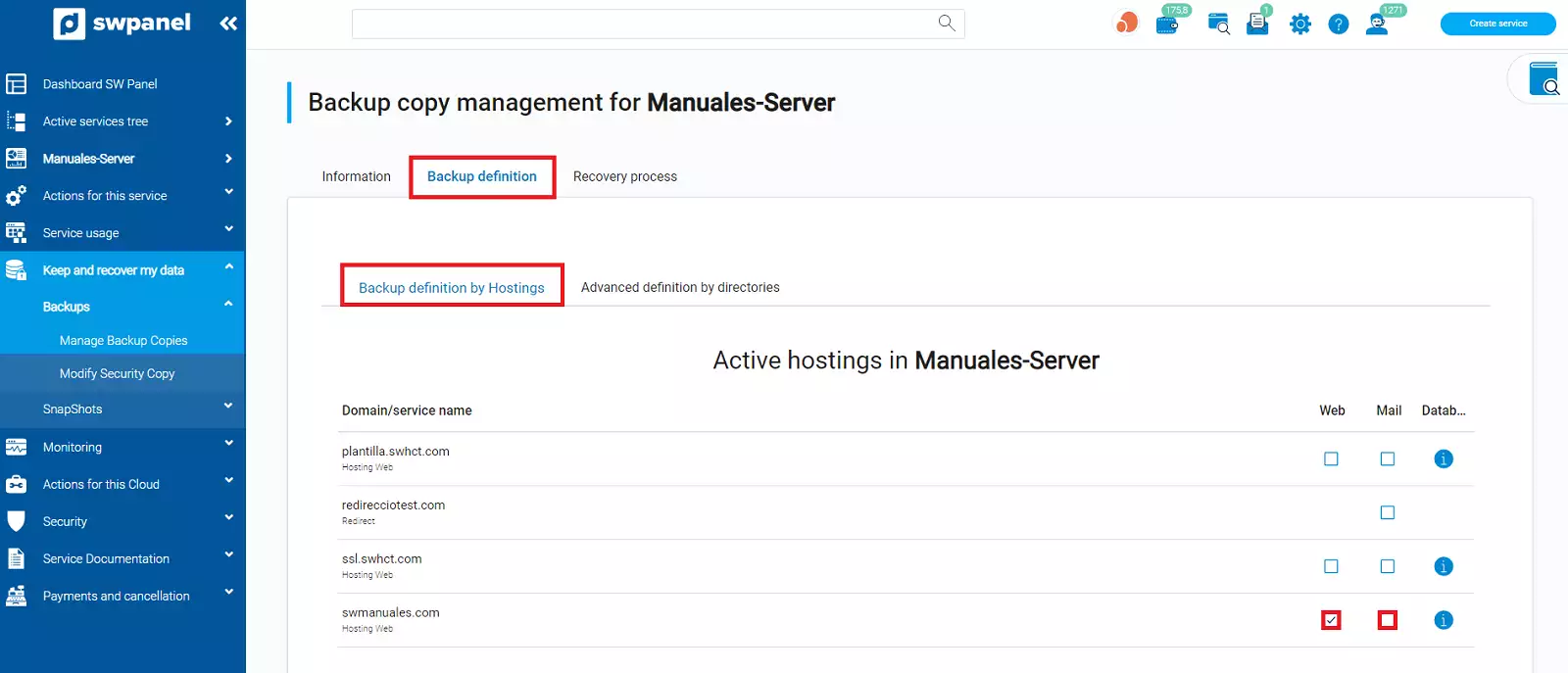
info_capture ℹ️ Note: This screenshot is for illustrative purposes only and was taken from version 2026.000.0023 dated 08/03/2026. It may differ from the current version of SWPanel.
Advanced directory-based backup configuration
If you wish to manually add directories or copy specific content, you can use the advanced directory-based configuration.
You can choose to apply the recommended settings, which automatically select the most important directories to back up all content from *Web, Email and Databases:
- Web:
/var/www - Email boxes:
/var/spool/postfix/busties - Databases:
/var/backupmysql - Others:
/etc
Click “Apply this recommendation” to include these directories automatically.
If you prefer, you can also configure the directories manually, choosing what to include or exclude using custom pattern.
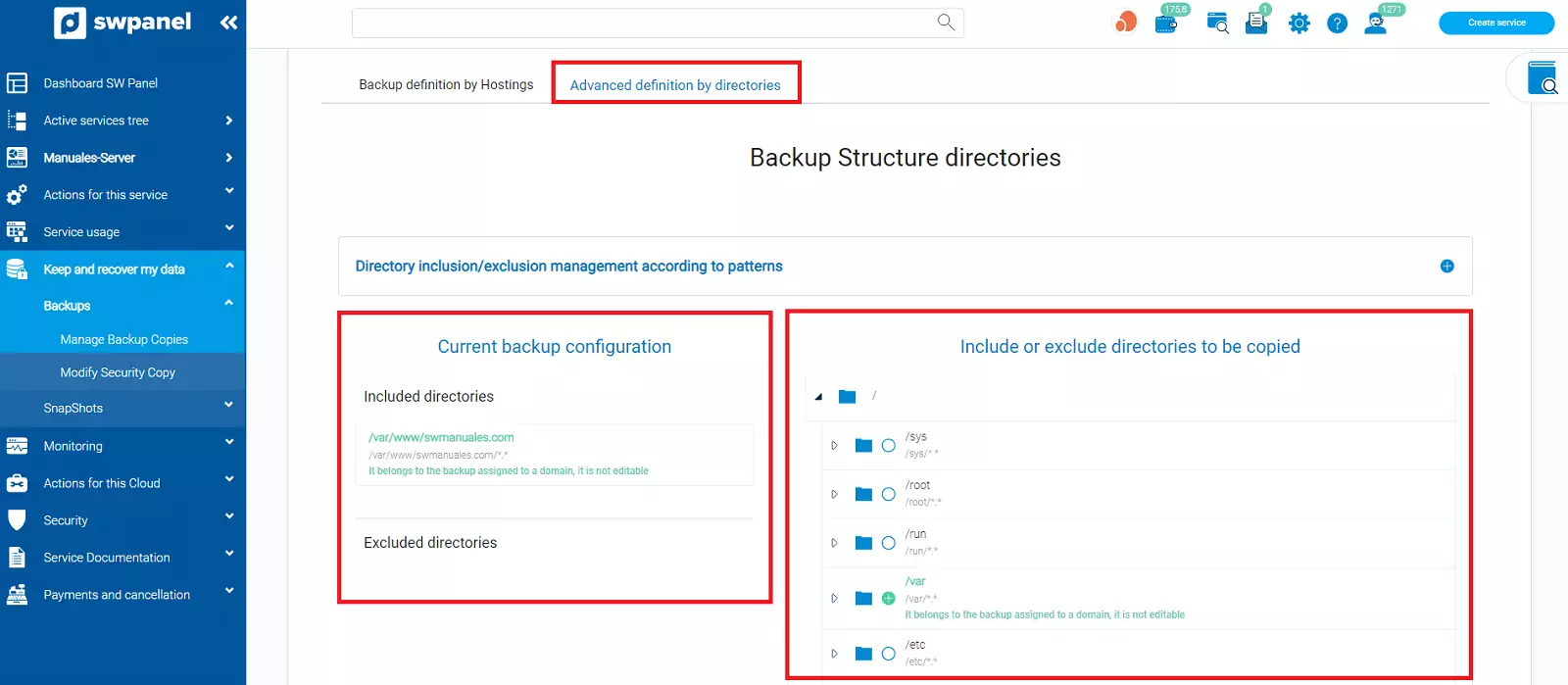
info_capture ℹ️ Note: This screenshot is for illustrative purposes only and was taken from version 2026.000.0023 dated 08/03/2026. It may differ from the current version of SWPanel.
By clicking on the icon next to the directory, you can configure each one as follows:
-
Included in the backup: click once; a plus sign (+) will appear, indicating that the directory will be backed up.
-
- Excluded from the backup: click a second time; the plus sign will change to a minus sign (−), indicating that this directory will not be included, even if its main folder is selected. For example, if you selected
/home/swuserbut wish to exclude/home/swuser/documentos.
- Excluded from the backup: click a second time; the plus sign will change to a minus sign (−), indicating that this directory will not be included, even if its main folder is selected. For example, if you selected
-
Removed from the backup: click a third time; the icon will be empty, indicating that the directory will not be included in the backup.
Once you have configured the directories to suit your needs, click Apply changes to save the settings.
If you wish to manage your backups again later, follow these steps:
- Go to Keep and recover my data > Backups > Manage Backup Copies (menú izquierdo).
- Click on the Backup definition tab to review or change your backup settings.

info_capture ℹ️ Note: This screenshot is for illustrative purposes only and was taken from version 2026.000.0023 dated 08/03/2026. It may differ from the current version of SWPanel.
Backups of the specified directories will be performed daily from 1:00 am.