How to back up my e-mail messages by downloading them locally to my PC
The following manual will show you how to save your emails locally in a simple way, as a backup. Using Thunderbird, as mail manager, using the free add-on importExportTools NG available for it.
Configuring the mail account in Thunderbird
info The configuration shown in this manual requires that your email account is previously managed through Thunderbird:
📃 Manual: Configuring my Hosting email accounts in Thunderbird
What is the ImportExportTools NG add-on?
ImportExportTools NG is a free Thunderbird add-on that gives users the ability to easily import and export emails.
Since ImportExportTools is not by default in Thunderbird, below we will provide a step-by-step guide on how to install and use ImportExportTools in Thunderbird in order to create a backup of mails from an entire mail account or specific folders.
How to add ImportExportTools NG to Thunderbird?
In the Thunderbird manager, go to Tools → Add-ons and Themes.
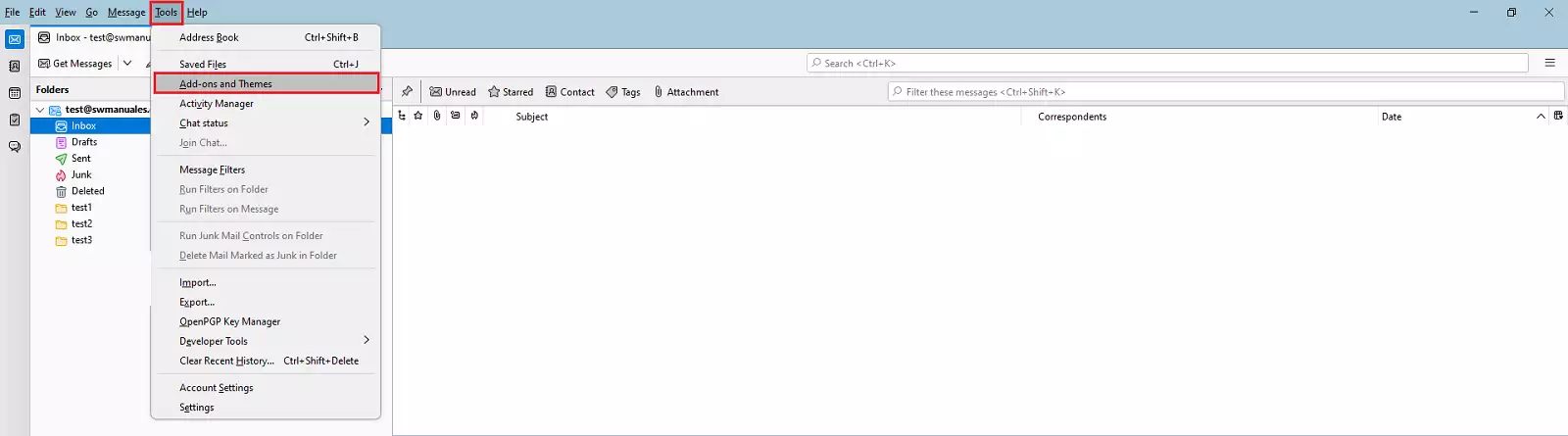
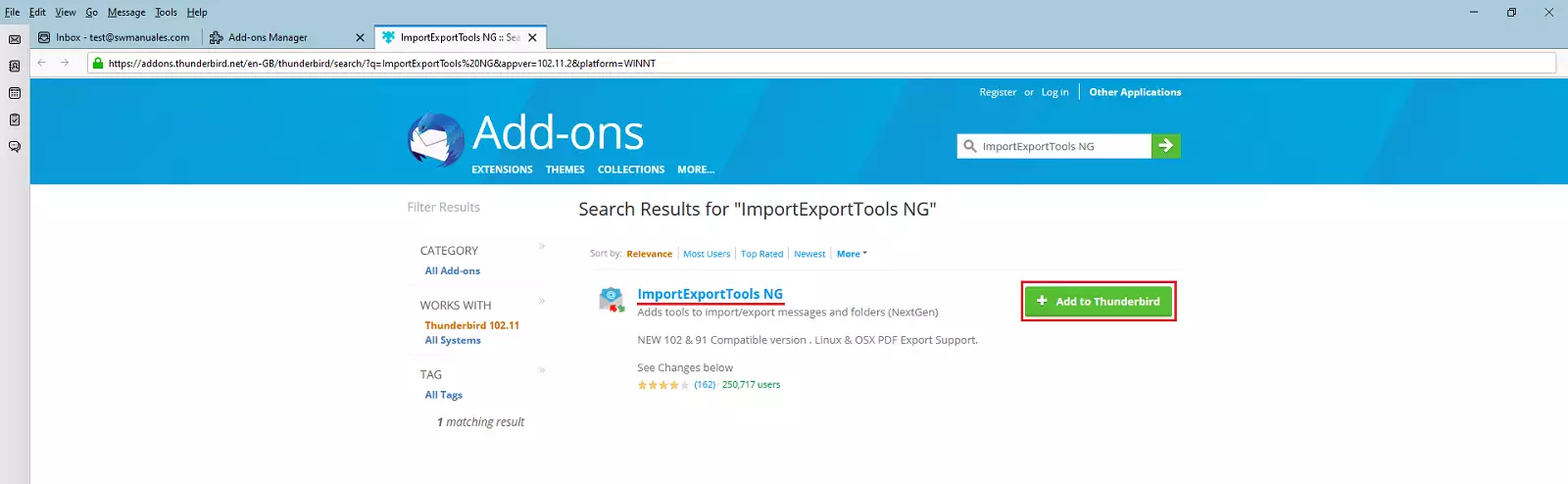
A new window will open. Enter 'ImportExportTools NG' in the top search bar and press Enter.

Select the "ImportExportTools NG" add-on and click the "Add to Thunderbird " button.
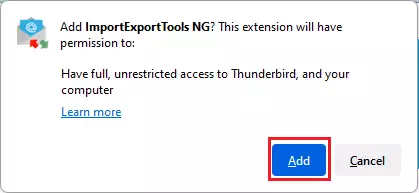
info You may get a pop-up window asking you to grant permissions to the new plug-in to continue the installation, click "Add ".
Once you have installed the required plug-in, you will be able to export the emails locally as a backup, as detailed below.
Export to local full e-mail account
Right click on the name of the email account --> ImportExportTools NG --> Export all the folders.
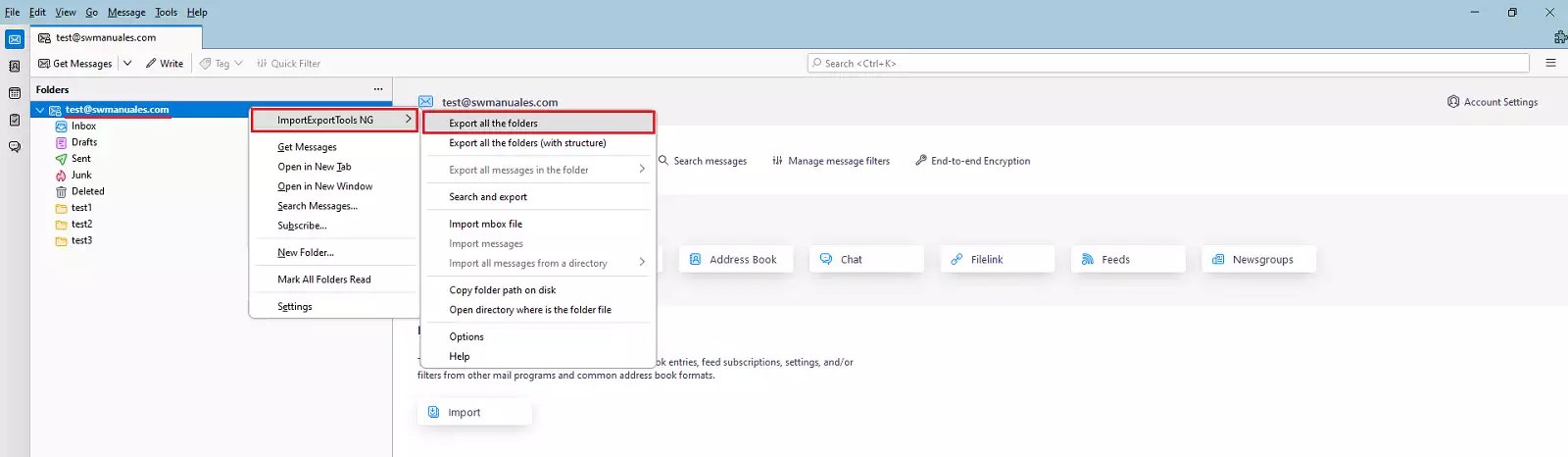
The file explorer will open for us to indicate the destination folder, select a folder and the export will start.
Depending on the size of the mail account, it may take a few minutes for the export to complete.
Export to a specific local folder
The procedure is similar to the previous point, but with a small difference.
We right click on the folder we want to save --> ImportExportTools NG --> Export Folder.
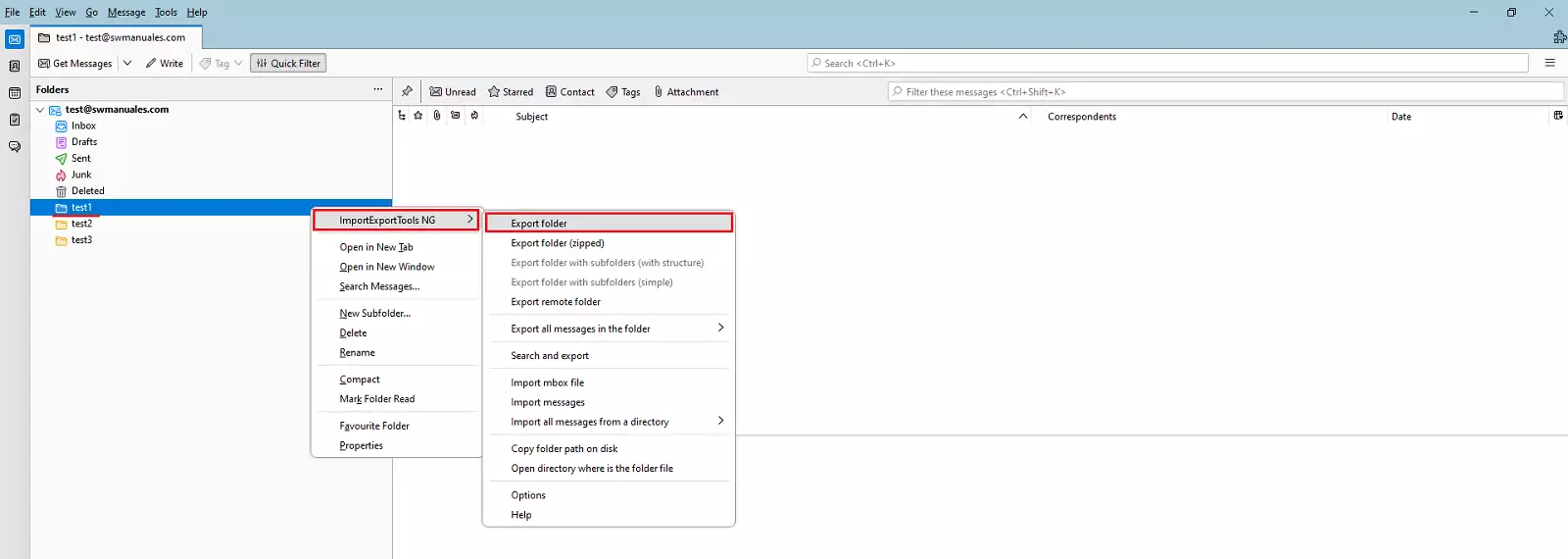
We indicate the destination folder and wait for the export to finish.
success That's it! Now you know how to save your emails locally so that it is a backup for your emails.