How to register in SWPanel.
SWPanel User Registration Manual
1. Summary and Introduction
The purpose of this manual is to guide the user step by step through the process of creating an account on SWPanel, a comprehensive cloud services management platform. The manual explains two main ways of registering:
- Registration using SWPanel's own form
- Registration using a Google account
What is SWPanel?
SWPanel is a web platform developed for the complete management of hosting services, cloud servers, domains and associated tools. It offers an intuitive, dynamic and customizable environment for both individuals and companies.
Available registration methods
- SWPanel registration form: Traditional registration using an email address, name or company, country, and a secure password.
- Google Account: Quick registration by authenticating with an existing Google account.
2.Registration using the SWPanel form
Step 1: Accessing the registration form
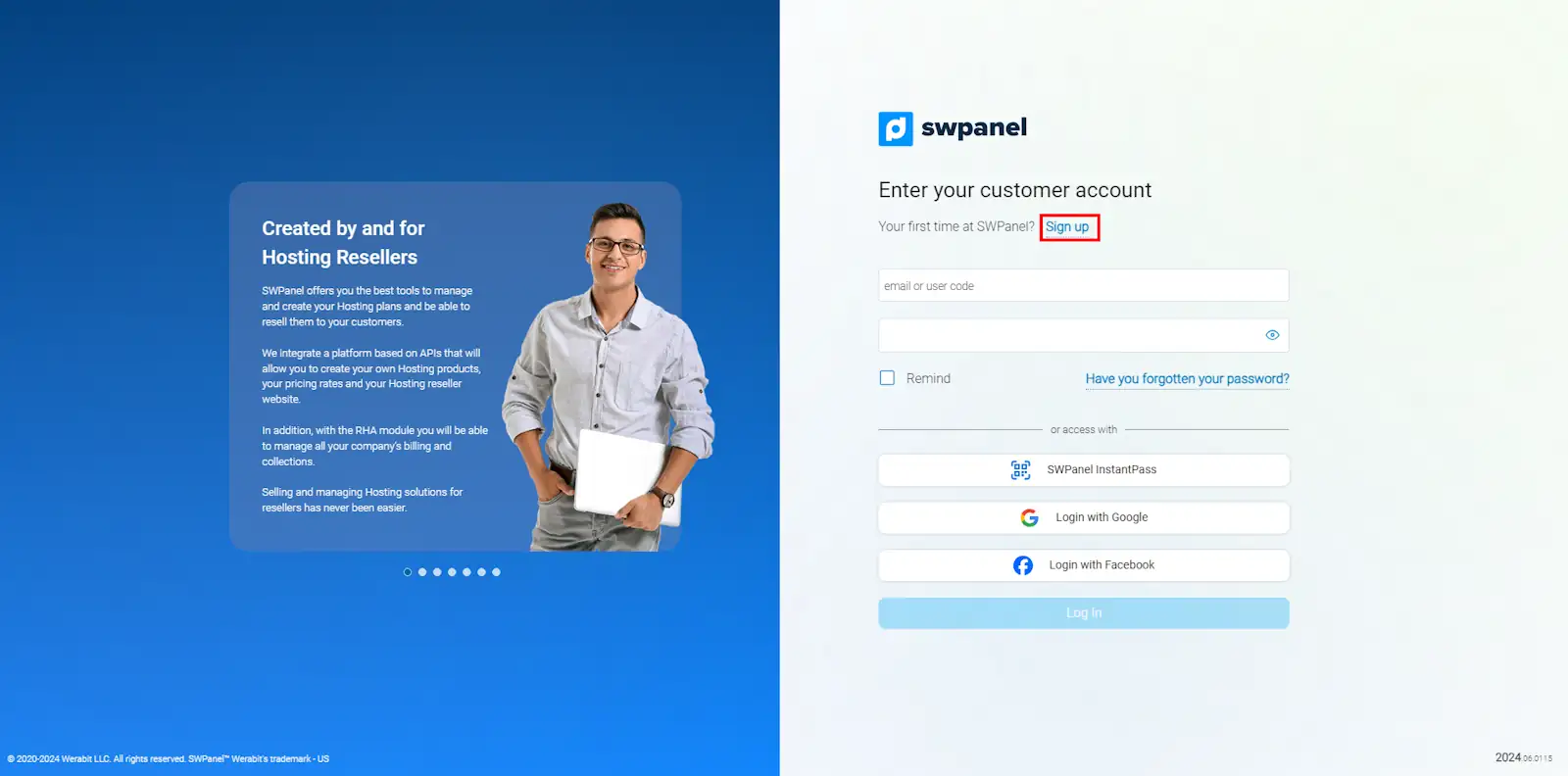
Access the official SWPanel site through the following registration link and click on “Sign up”.
info_capture The screenshot is for guidance purposes. It was taken on version 2025.03.0003 dated 26/03/2025. It may differ from what the current version of SWPanel shows.
Image explanation: The initial welcome page is shown, with the “Sign Up” button at the top right.
Step 2: Enter your initial credentials
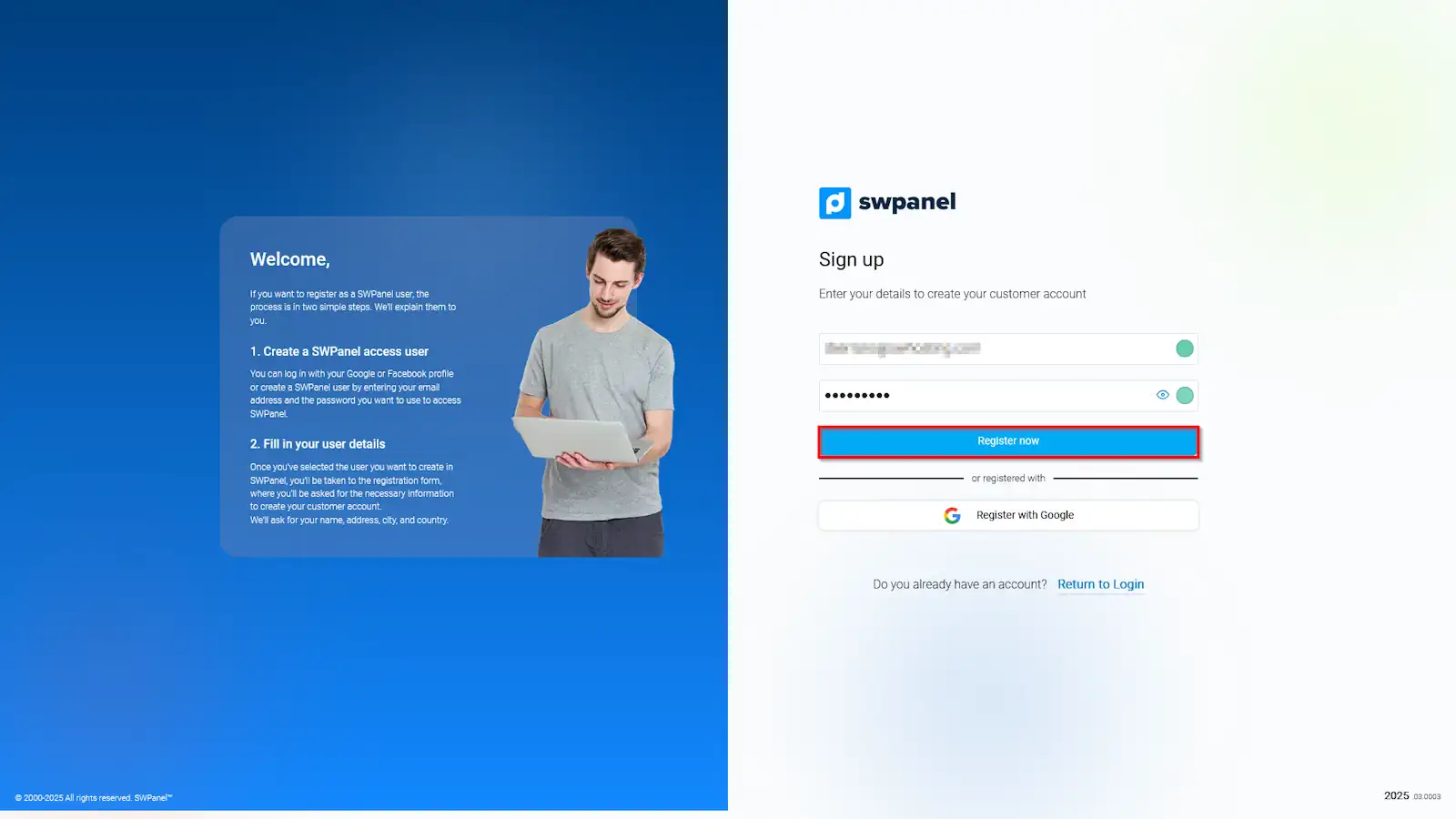
Enter your email address and choose a strong password. Then click on “Register Now”.
info_capture The screenshot is for guidance purposes. It was taken on version 2025.03.0003 dated 26/03/2025. It may differ from what the current version of SWPanel shows.
Detail: The password must be unique, preferably containing letters, numbers and special characters to improve security.
Step 3: Personal or company details
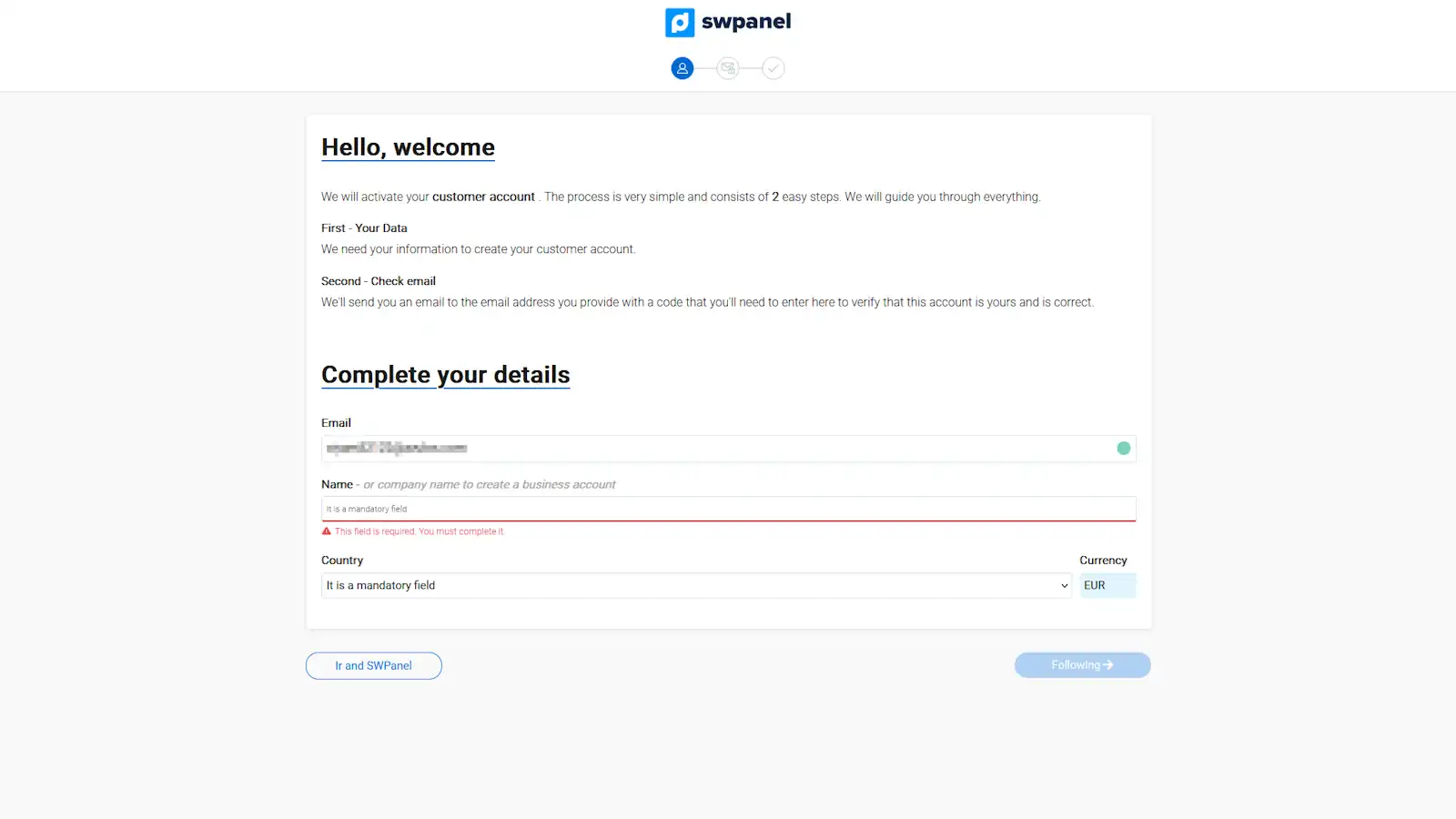
Fill in the required fields, such as your full name or the name of the company and select your country of residence.
info_capture The screenshot is for guidance purposes. It was taken on version 2025.03.0003 dated 26/03/2025. It may differ from what the current version of SWPanel shows.
Step 4: Additional information and continuation of the registration
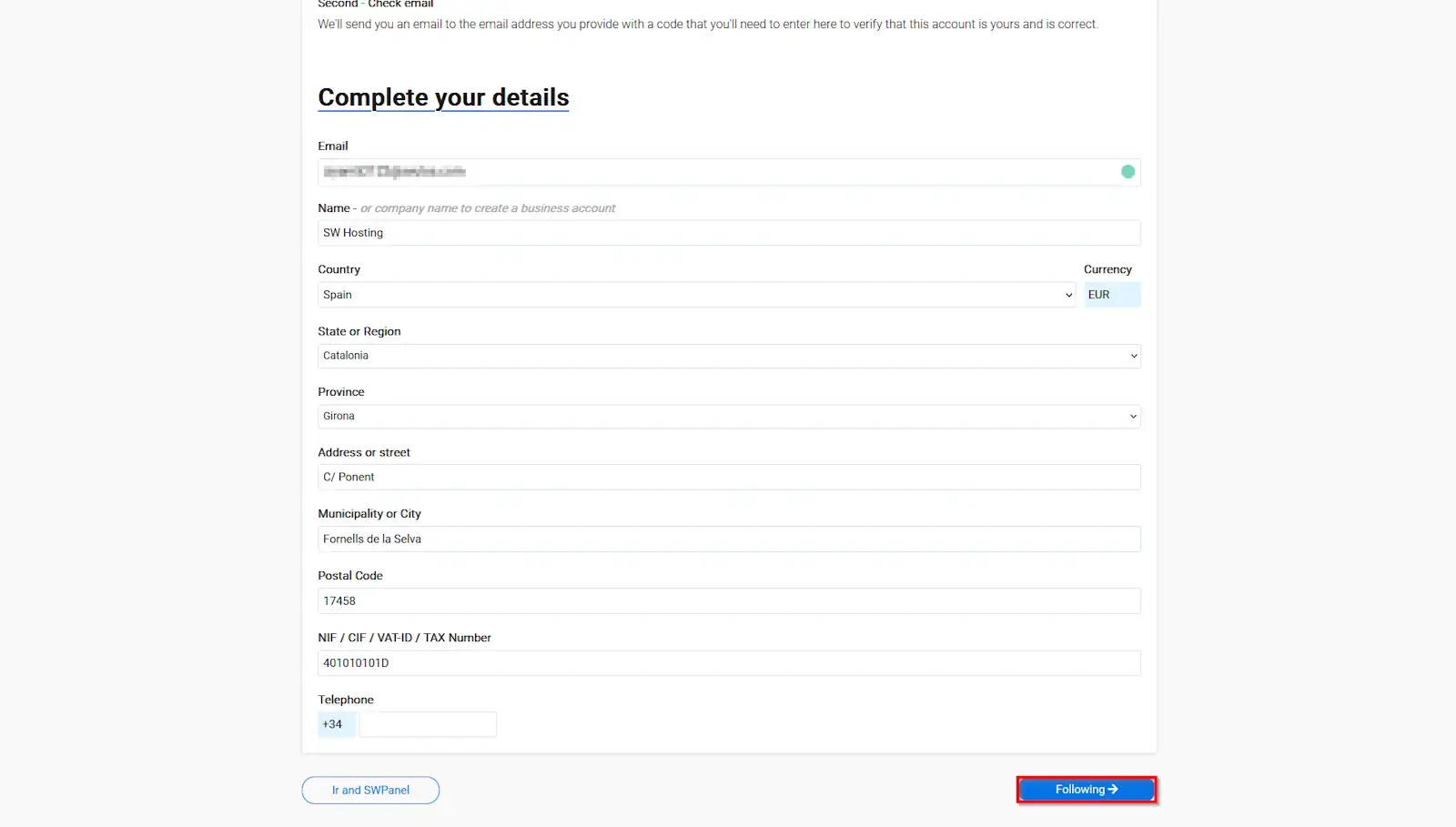
Enter the additional information requested on the form and click on “Next” to continue.
info_capture The screenshot is for guidance purposes. It was taken on version 2025.03.0003 dated 26/03/2025. It may differ from what the current version of SWPanel shows.
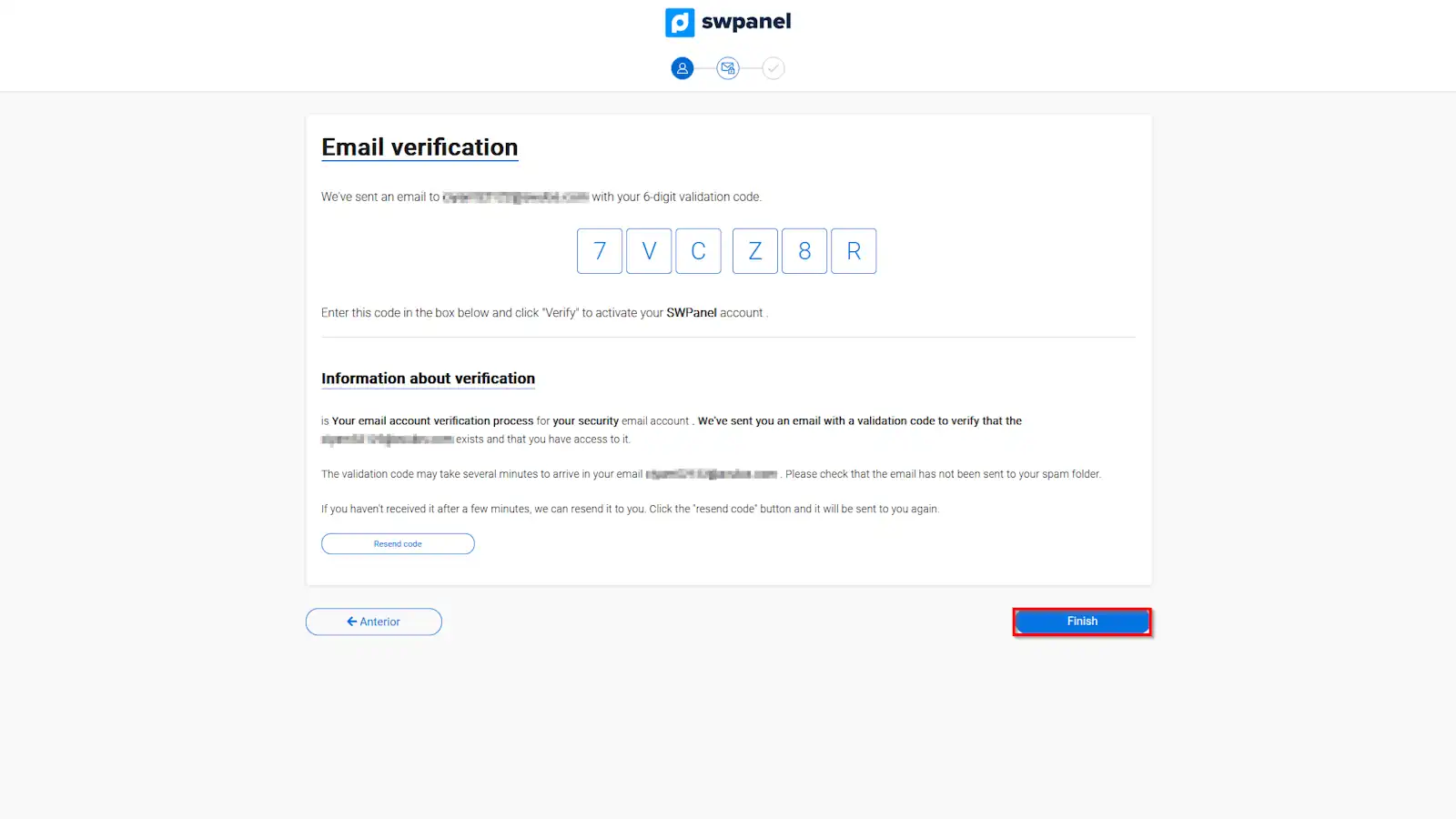
Step 5: Verify your email address
Check your inbox and enter the verification code sent by SWPanel to confirm your identity.
info_capture The screenshot is for guidance purposes. It was taken on version 2025.03.0003 dated 26/03/2025. It may differ from what the current version of SWPanel shows.
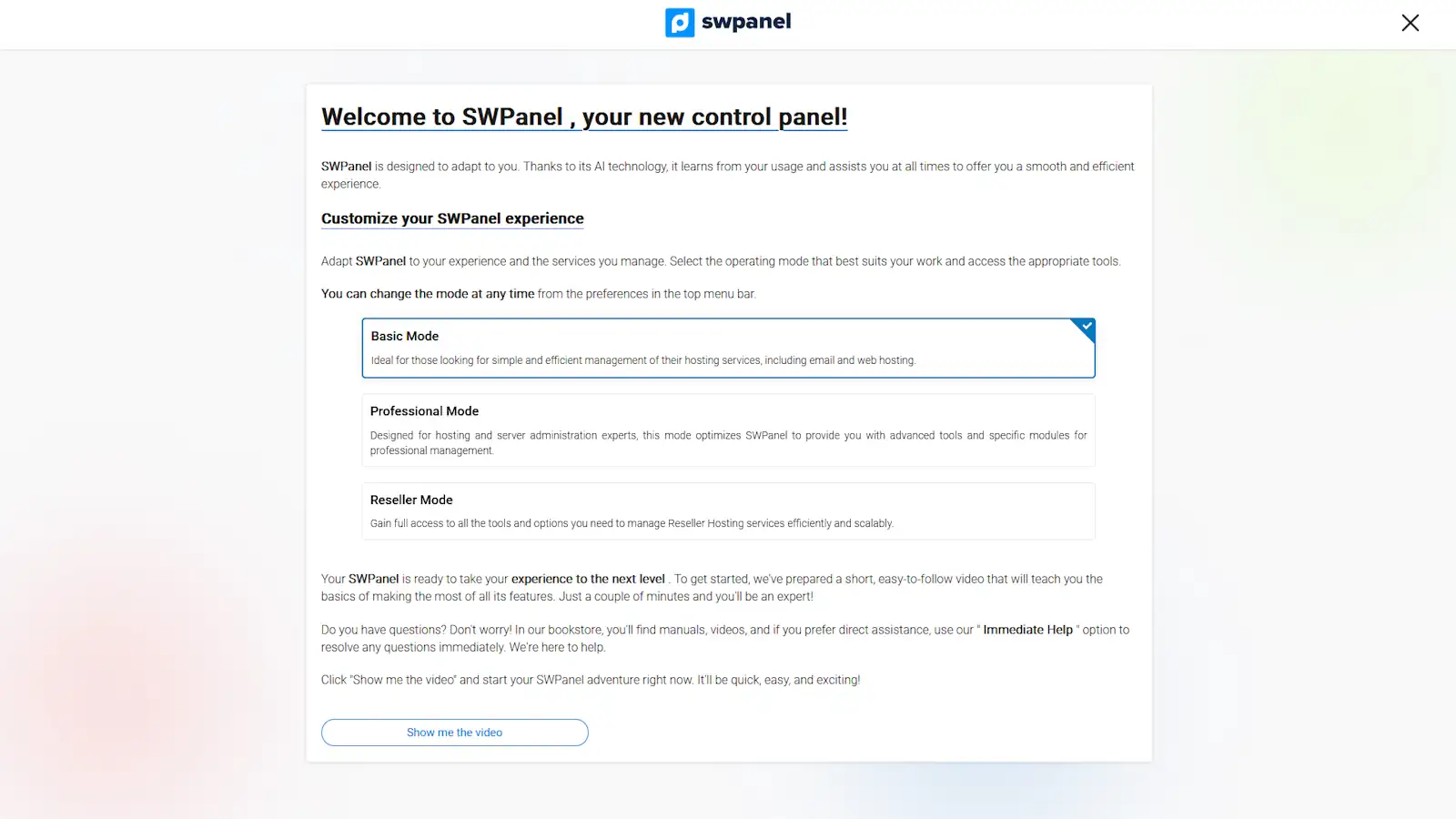
Step 6: Customizing the environment
Choose between the different SWPanel operating modes, as a beginner, advanced or professional user, depending on your level of experience.
info_capture The screenshot is for guidance purposes. It was taken on version 2025.03.0003 dated 26/03/2025. It may differ from what the current version of SWPanel shows.
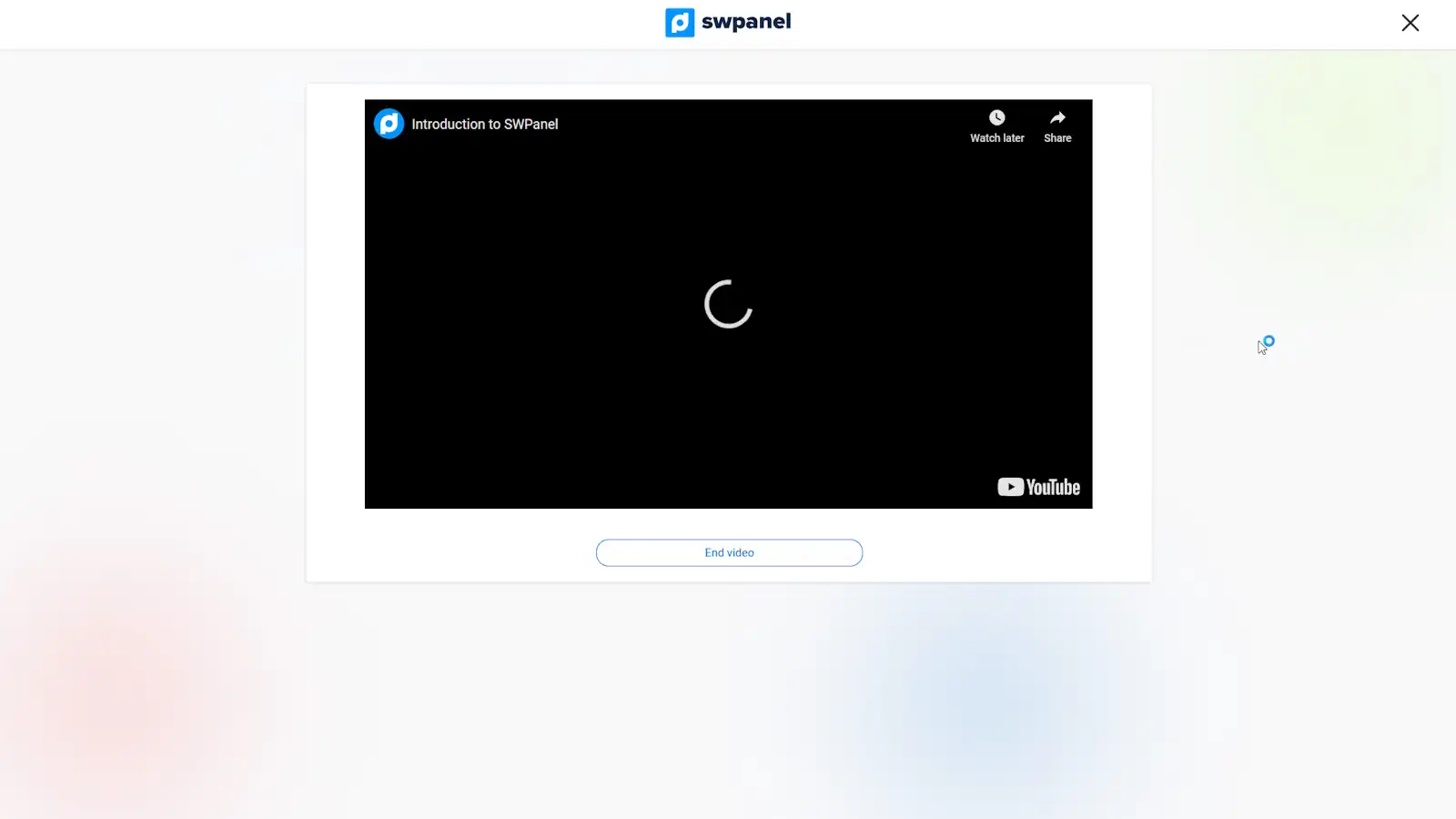
Step 7: Introduction to the platform
SWPanel offers you a brief introductory video showing the main functions that you will be able to use. It is advisable to watch it in order to familiarize yourself with the environment.
info_capture The screenshot is for guidance purposes. It was taken on version 2025.03.0003 dated 26/03/2025. It may differ from what the current version of SWPanel shows.
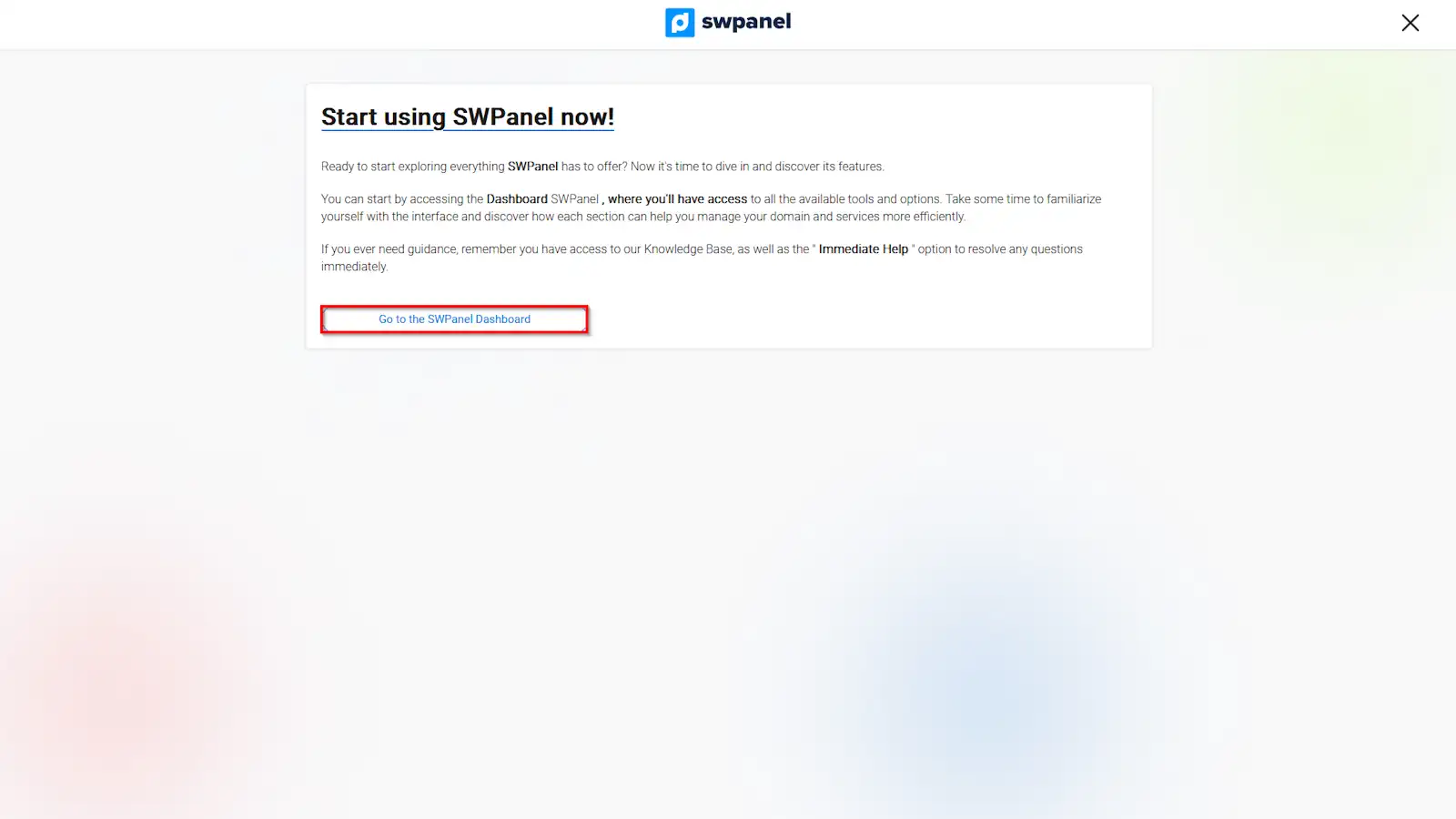
Step 8: Access the Dashboard
Once you have completed all the previous steps, click on “Go to the SWPanel Dashboard” to access your account.
info_capture The screenshot is for guidance purposes. It was taken on version 2025.03.0003 dated 26/03/2025. It may differ from what the current version of SWPanel shows.
3. Registration via Google account
Step 1: Access to the register
Go to the following registration link and select “Sign Up”.
info_capture The screenshot is for guidance purposes. It was taken on version 2025.03.0003 dated 26/03/2025. It may differ from what the current version of SWPanel shows..
Step 2: Select the option “Sign up with Google”
Click on ‘Sign up with Google’.
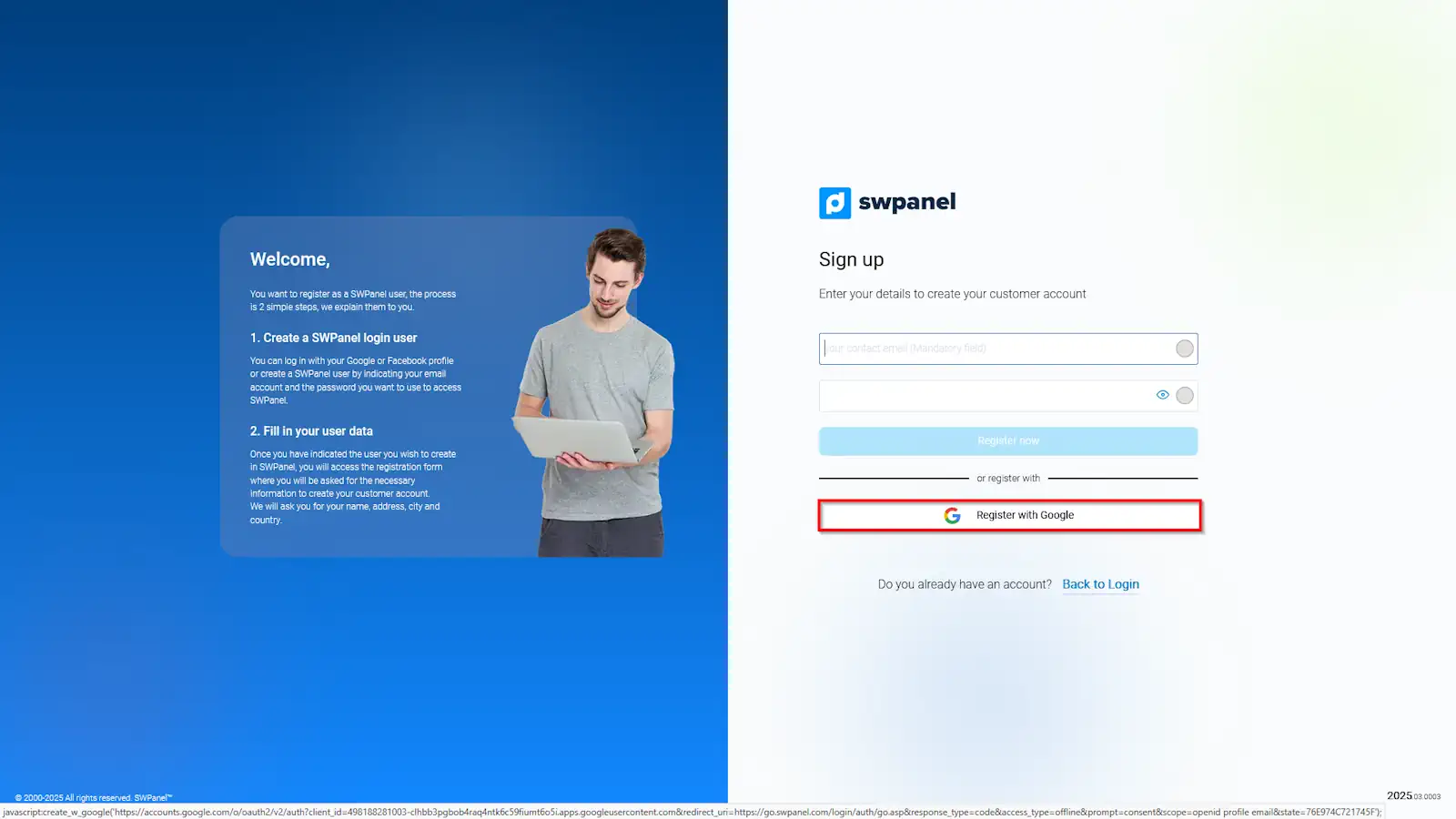
info_capture The screenshot is for guidance purposes. It was taken on version 2025.03.0003 dated 26/03/2025. It may differ from what the current version of SWPanel shows.
Step 3: Select or enter a Google account
Select an account that has already been set up or enter a valid Google address and press “Next”.
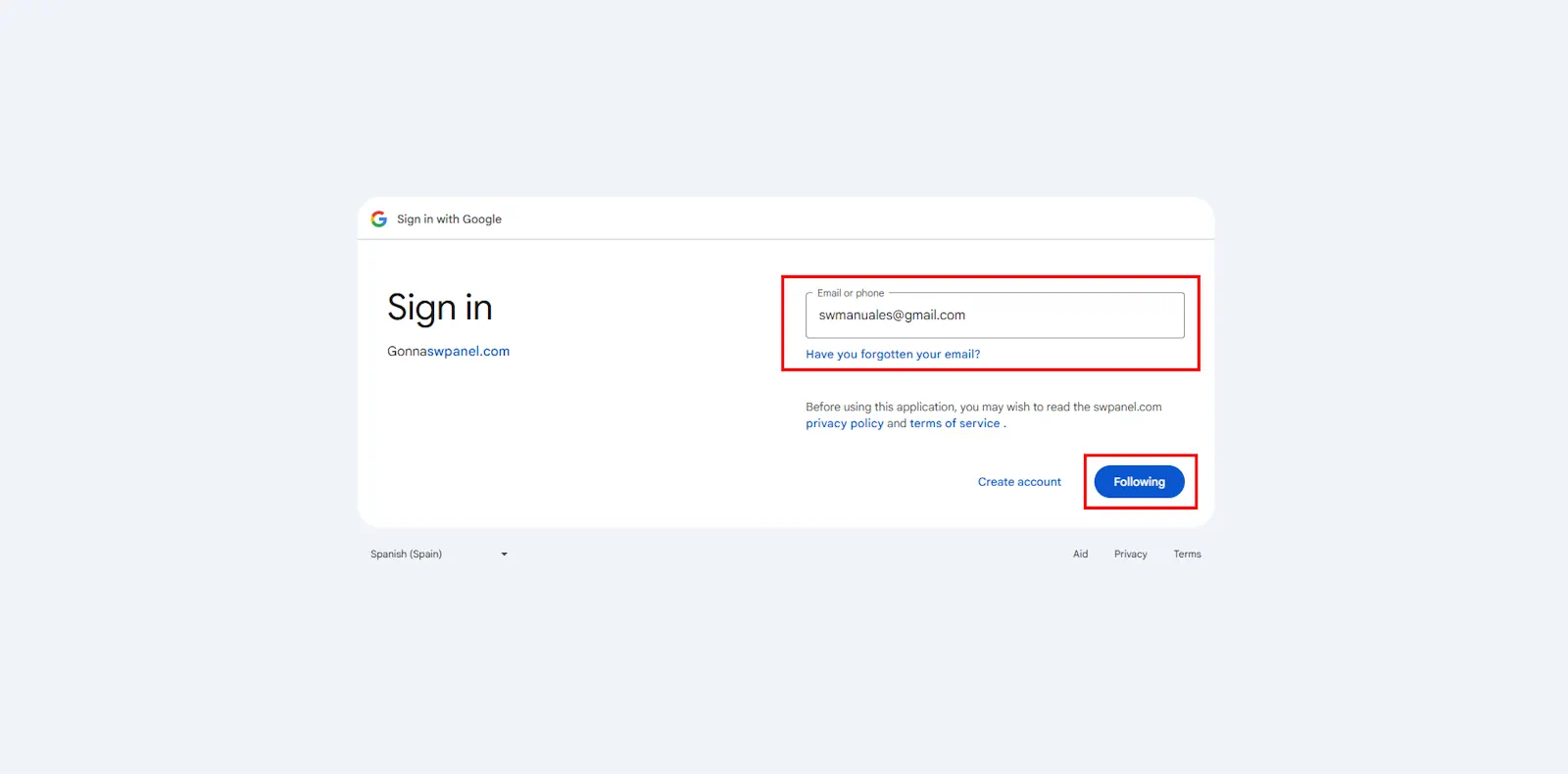
info_capture The screenshot is for guidance purposes. It was taken on version 2025.03.0003 dated 26/03/2025. It may differ from what the current version of SWPanel shows.
Step 4: Google Password
Enter your password and click on “Next” to continue.
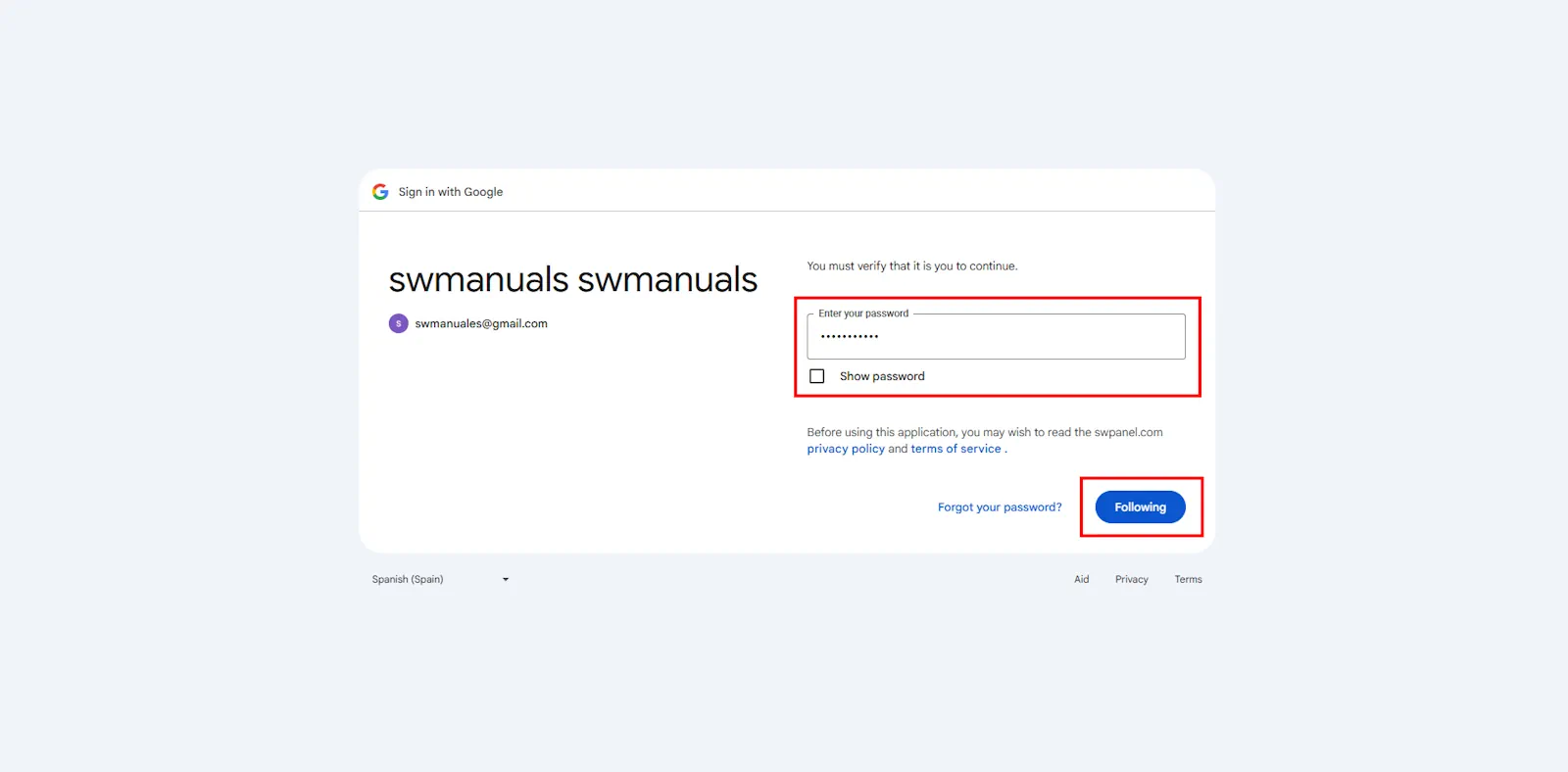
info_capture The screenshot is for guidance purposes. It was taken on version 2025.03.0003 dated 26/03/2025. It may differ from what the current version of SWPanel shows.
Step 5: Authorization of permissions
Allows access to SWPanel to link your Google account. Click “Continue”.
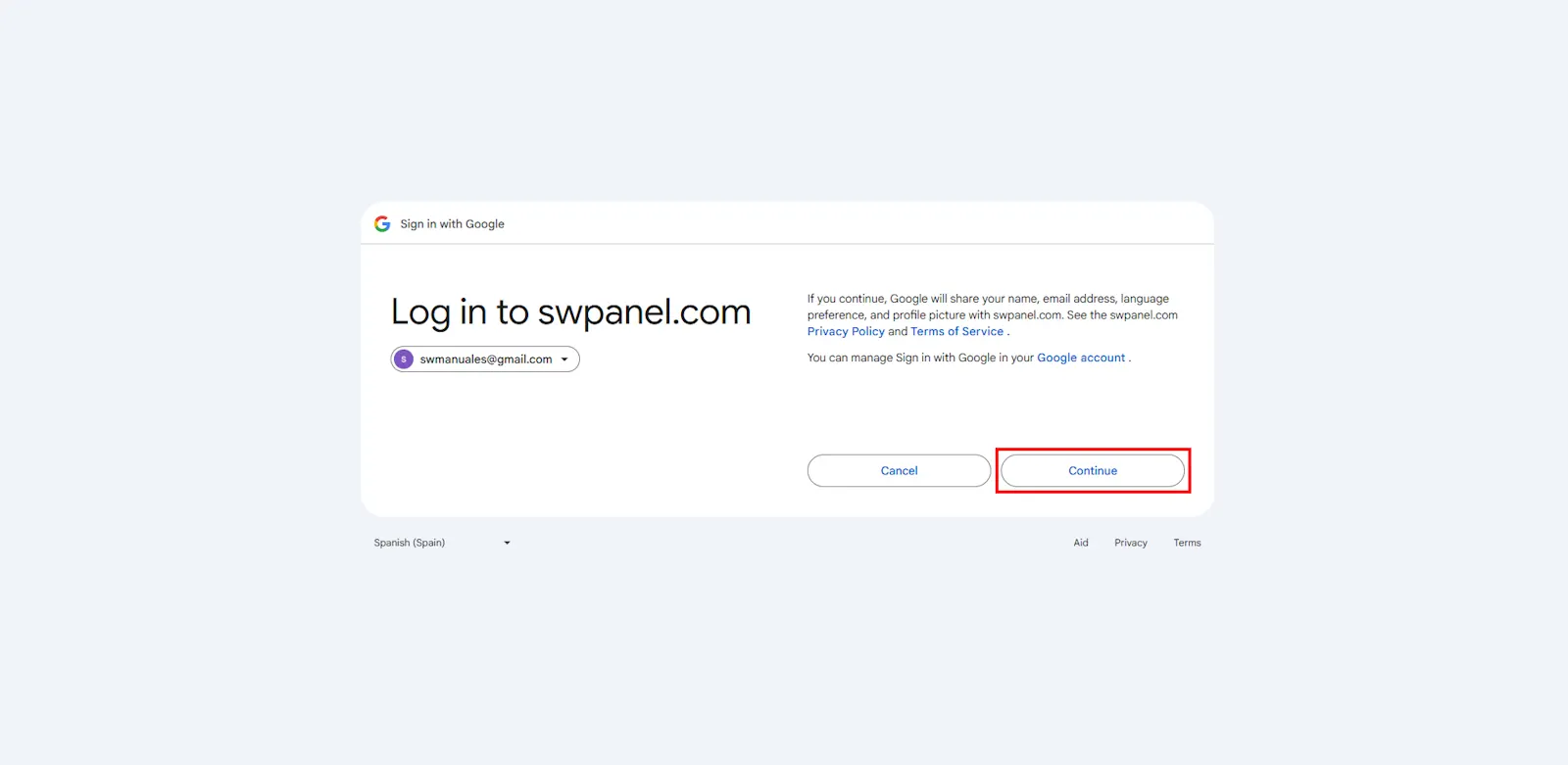
info_capture The screenshot is for guidance purposes. It was taken on version 2025.03.0003 dated 26/03/2025. It may differ from what the current version of SWPanel shows..
Step 6: Continue with the registration
Go back to step 4- Additional information and continuation of the registration to finalize the complete registration of your SWPanel account
success Done! Your new user account has been created. You can now enjoy all the features that SWPanel has to offer.