Change of domain contact
Any change regarding the Administrative Contact or the Technical Contact of a domain must be carried out through the SWPanel. However, this procedure applies to all extensions except .es domains, which have a specific manual indicated below.
Access to: go.swpanel.com and click on the tab "Domains and Certificates", located on the left side menu in blue -> Domain portfolio
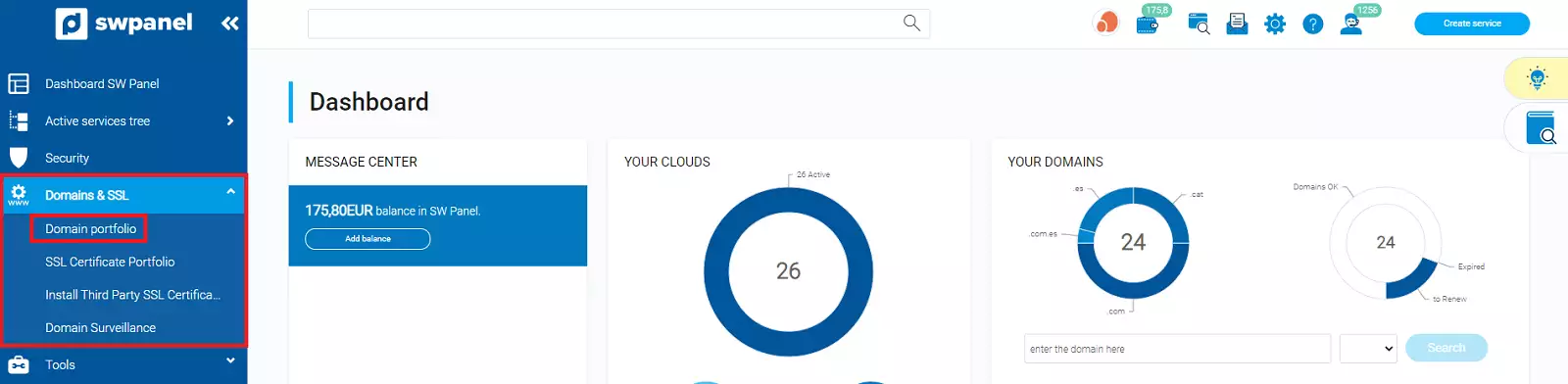
info_capture The screenshot is for guidance only. It was taken on version 2025.00.0017 with date 17/12/2024. It may differ from what the current version of SWPanel displays.
The first thing to do before changing a contact is to create a new one with the data we want to appear in the domain whois. To create it, click on the "Contacts" tab and then click on "Create contacts".
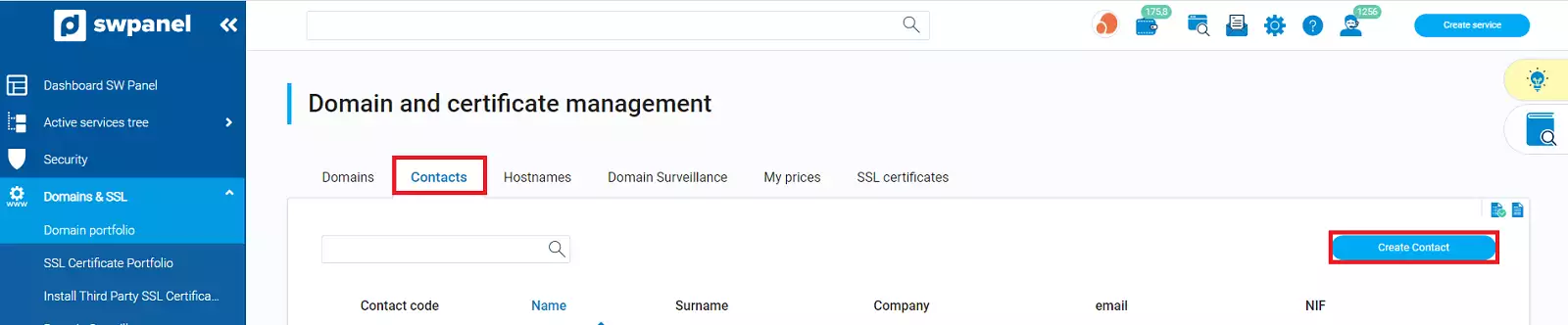
info_capture The screenshot is for guidance only. It was taken on version 2025.00.0017 with date 17/12/2024. It may differ from what the current version of SWPanel displays.
Fill in the contact creation form and click on "Save contact".
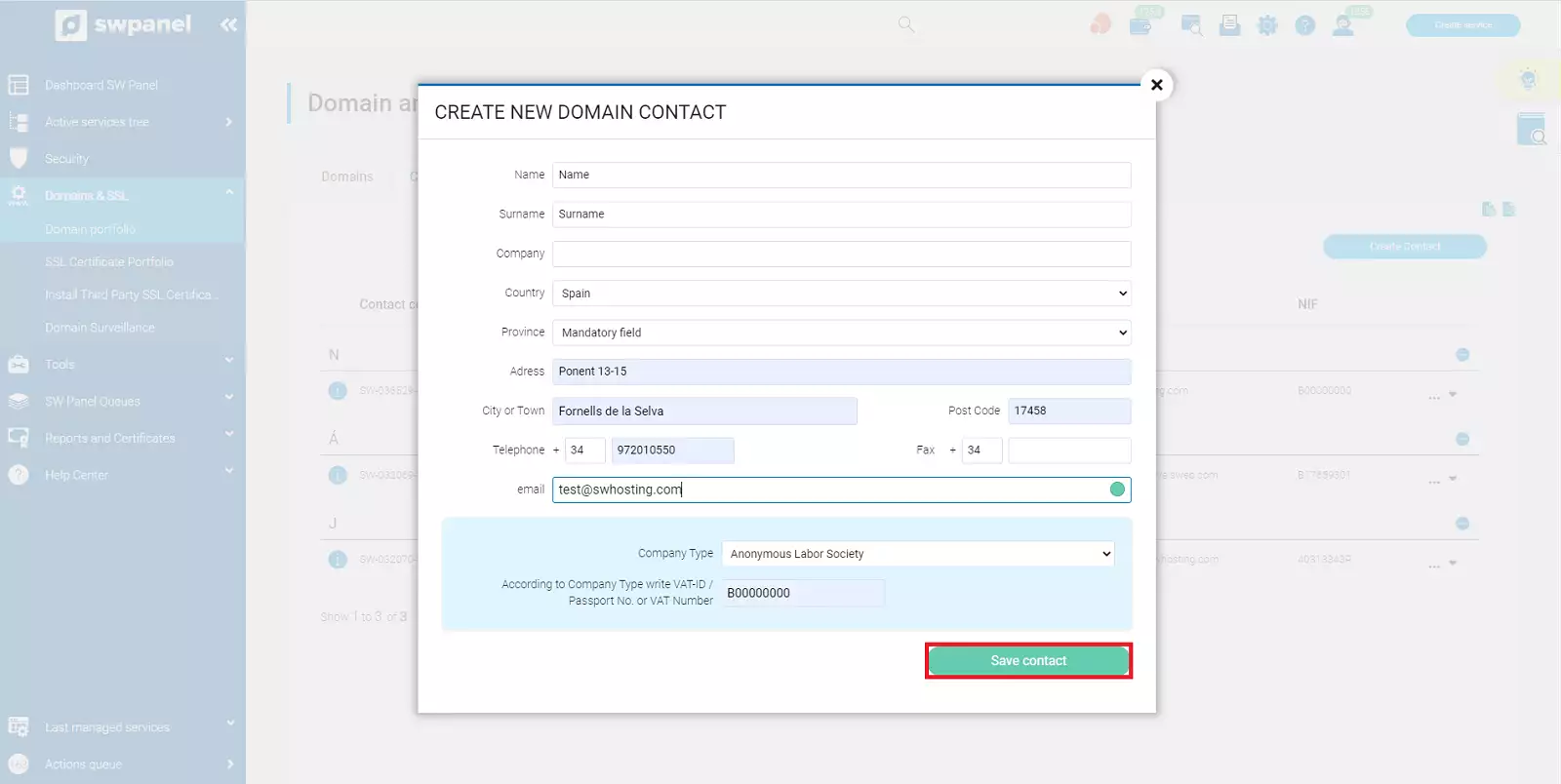
info_capture The screenshot is for guidance only. It was taken on version 2025.00.0017 with date 17/12/2024. It may differ from what the current version of SWPanel displays.
Once created we will proceed to modify the current contact. To do this you have to select the "Domains" tab and expand the tab to the right of the domain. If you want to change, for example, the Administrative Contact, you must click on "Administrative Contact Data".
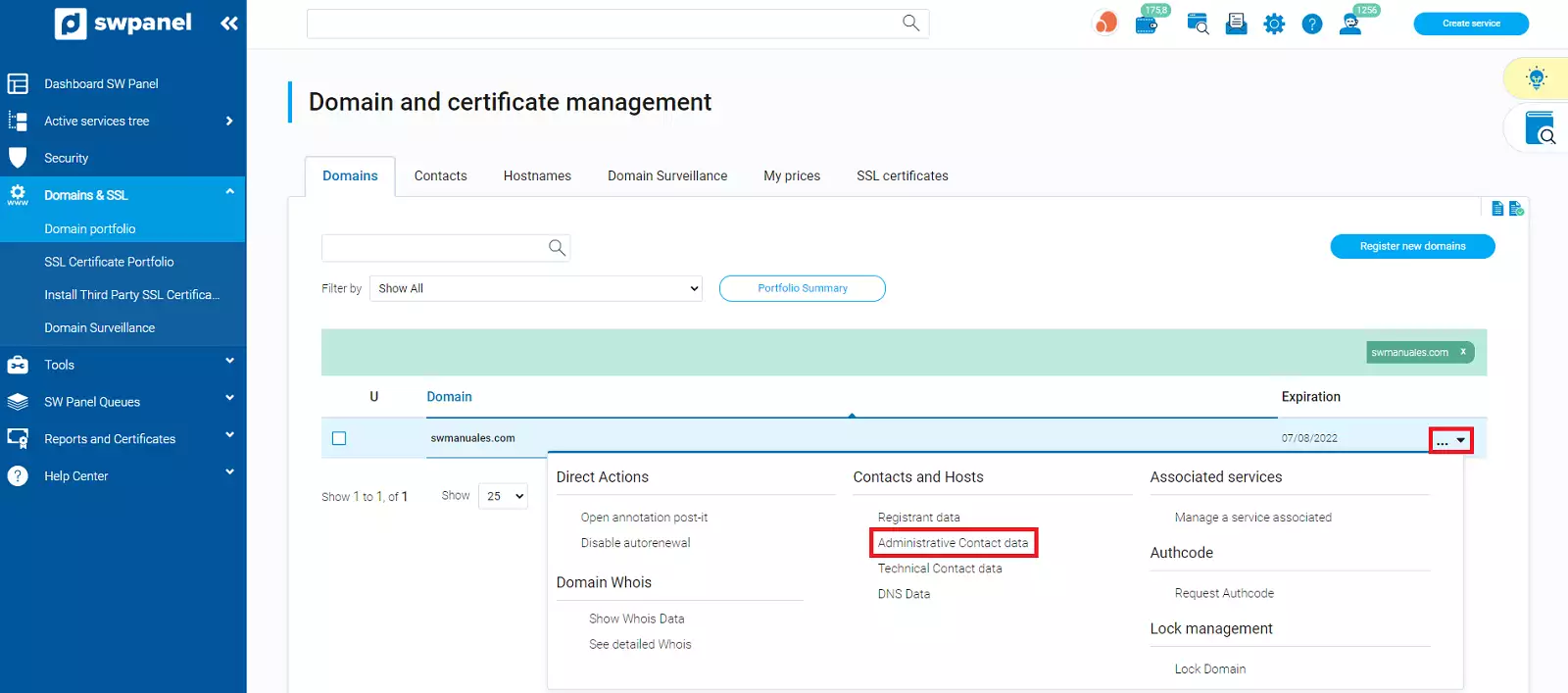
info_capture The screenshot is for guidance only. It was taken on version 2025.00.0017 with date 17/12/2024. It may differ from what the current version of SWPanel displays.
The current details of your domain will be displayed. Click on Change contact.
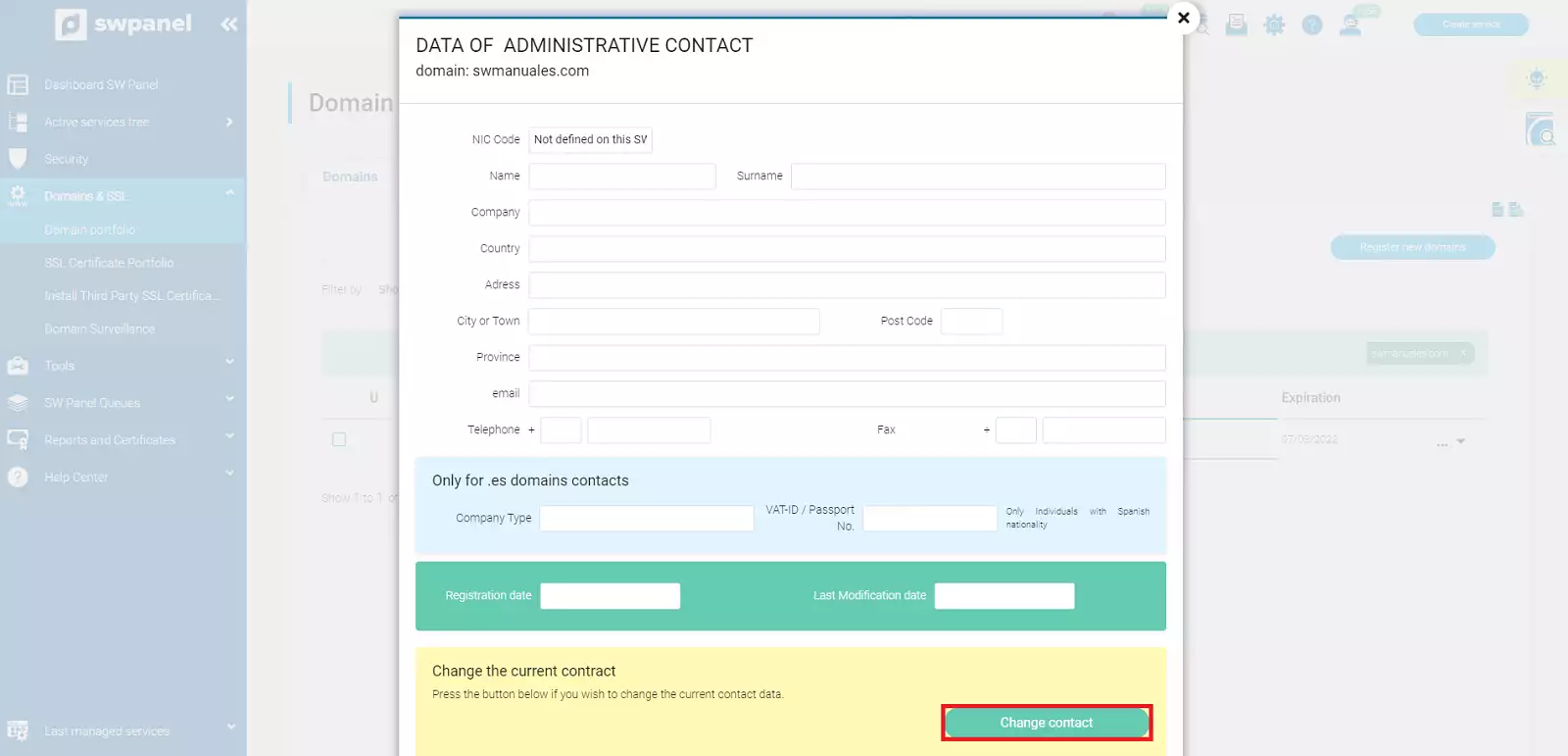
info_capture The screenshot is for guidance only. It was taken on version 2025.00.0017 with date 17/12/2024. It may differ from what the current version of SWPanel displays.
All the contacts you have created in your SWPanel will appear here. Select the desired contact and click on "Assign".
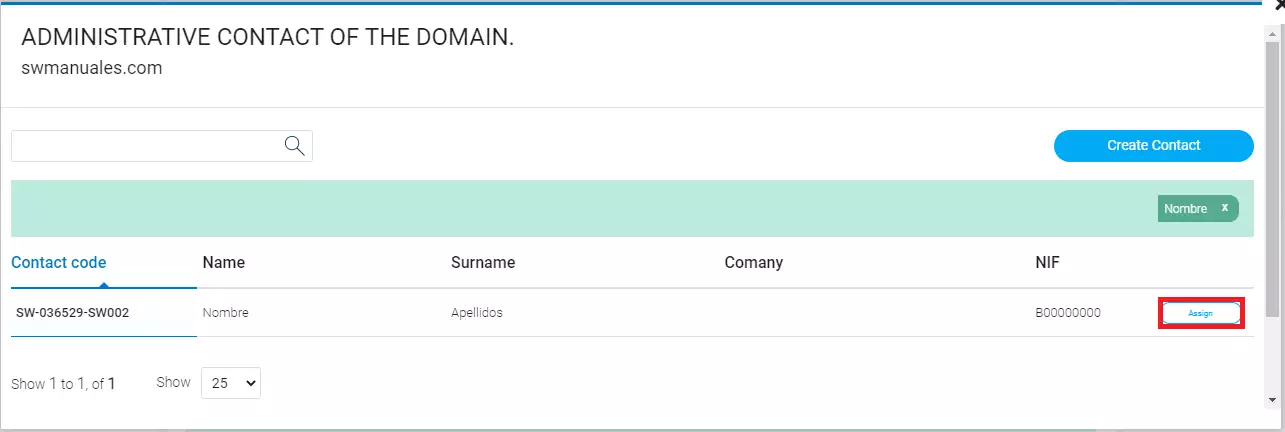
info_capture The screenshot is for guidance only. It was taken on version 2025.00.0017 with date 17/12/2024. It may differ from what the current version of SWPanel displays.
The change may take a few minutes. You will notice that to the left of the modified domain, the "updating" icon will appear until the change has been propagated.
We will repeat the same steps if the contact we want to modify is the Technical Contact of the domain.
info DOMAINS .ES: The .es extensions require that the administrative and technical contact of the domain must be a physical person.
Holder / Owner
GENERIC DOMAINS
On December 1, 2016, a new policy from ICANN, the top domain authority, went into effect that directly affects the generic domain ownership change process.
As the entity in charge of managing Internet extensions globally, ICANN has established new rules and procedures of mandatory compliance for holders of generic domains (.com, .net, .org, info...) and new domains or ngTLDs (.eus, .blog, .futbol, etc.), but which do not affect territorial extensions such as .es.
In summary, the new regulations imply:
- The blocking of the domain for transfer during 60 days after the change of owner.
A change of ownership will occur whenever any of the owner's data is changed and an attempt is made to assign a new contact.
The procedure for a change of owner is done in the same way as a change of Administrative and Technical Contact.
.ES DOMAINS
Modifying the holder/owner of a .es domain is a little different than the other domains, since it cannot be changed from SWPanel: it requires a special procedure with NIC.es. This procedure can be carried out by yourself at NIC.es
If you need more information for .es domains you can consult our manual 📃 Manual: Change of contact for a .es domain.