This website uses its own and third-party cookies for analytical purposes: to identify the session, provide you with an optimal user experience and better understand your preferences. For more information about our cookie policy, you can visit the link Cookie information.
Click the "Accept" button to give your consent to the aforementioned cookies.
Necessary Cookies
Necessary
These are cookies that allow the user to navigate through a website, platform or application and to use the different options or services available therein, including those that the publisher uses to enable the management and operation of the website and to activate its functions and services. SERVERID: This cookie indicates which server has provided the response to the web browsing request. This function is necessary for the website’s functionality. It is an HTTP cookie and expires at the end of the session. swpanel_session: This function is necessary for the website’s functionality, for example for the shopping cart. It is an HTTP cookie and expires at the end of the session. XSRF-TOKEN: Ensures secure browsing for the visitor by preventing Cross-Site Request Forgery (CSRF). This cookie is essential for the security of the website and the visitor. It is an HTTP cookie and has an expiry of 1 day.
Statistical Cookies
Statistical cookies help website owners understand how visitors interact with those pages by gathering and providing information anonymously. _ga: Records a unique ID that is used to generate statistical data about how the visitor uses the website. It is of HTTP type and expires after two years. _gat: Used by Google Analytics to monitor the request rate. It is of type HTTP and expires in one day. _gid: Records a unique ID that is used to generate statistical data about how the visitor uses the website. It is of type HTTP and expires in one day.
Steps to follow to change the template of a Hosting service
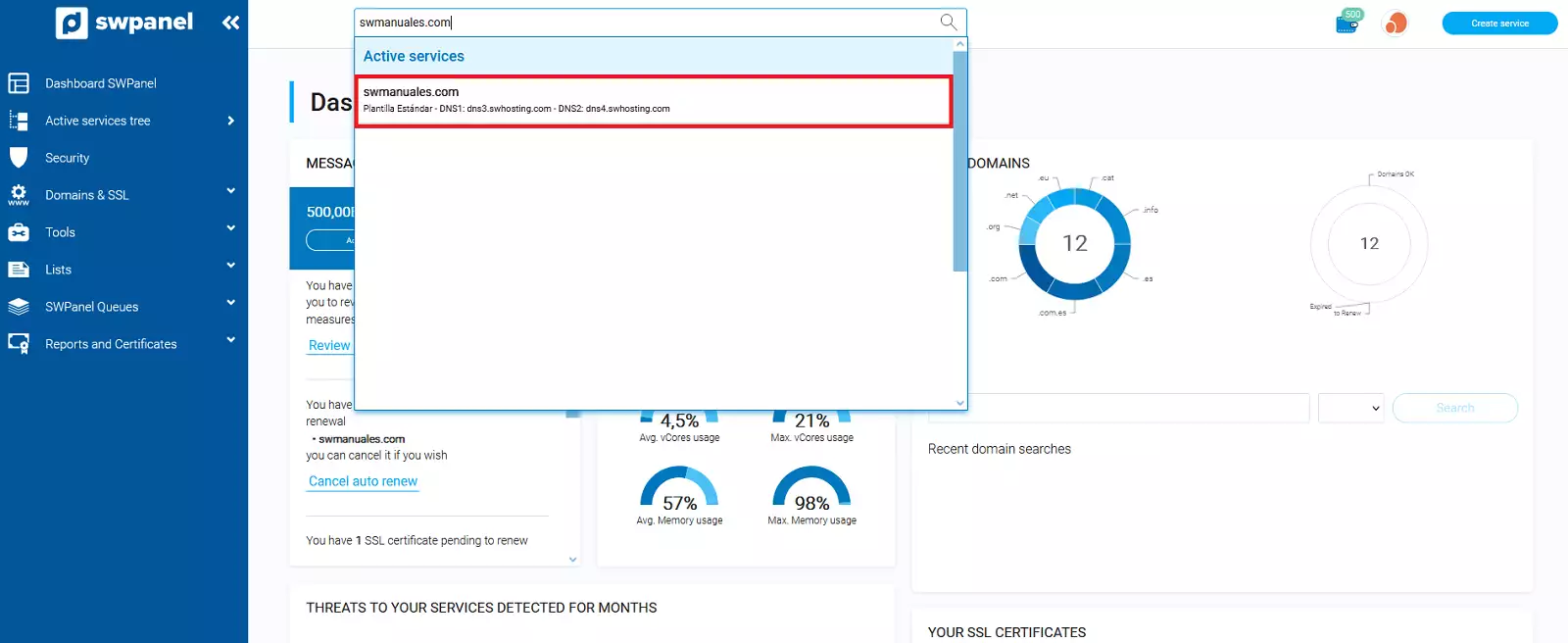
Log in to SWPanel and go to the Hosting service Dashboard, using the search engine located at the top.
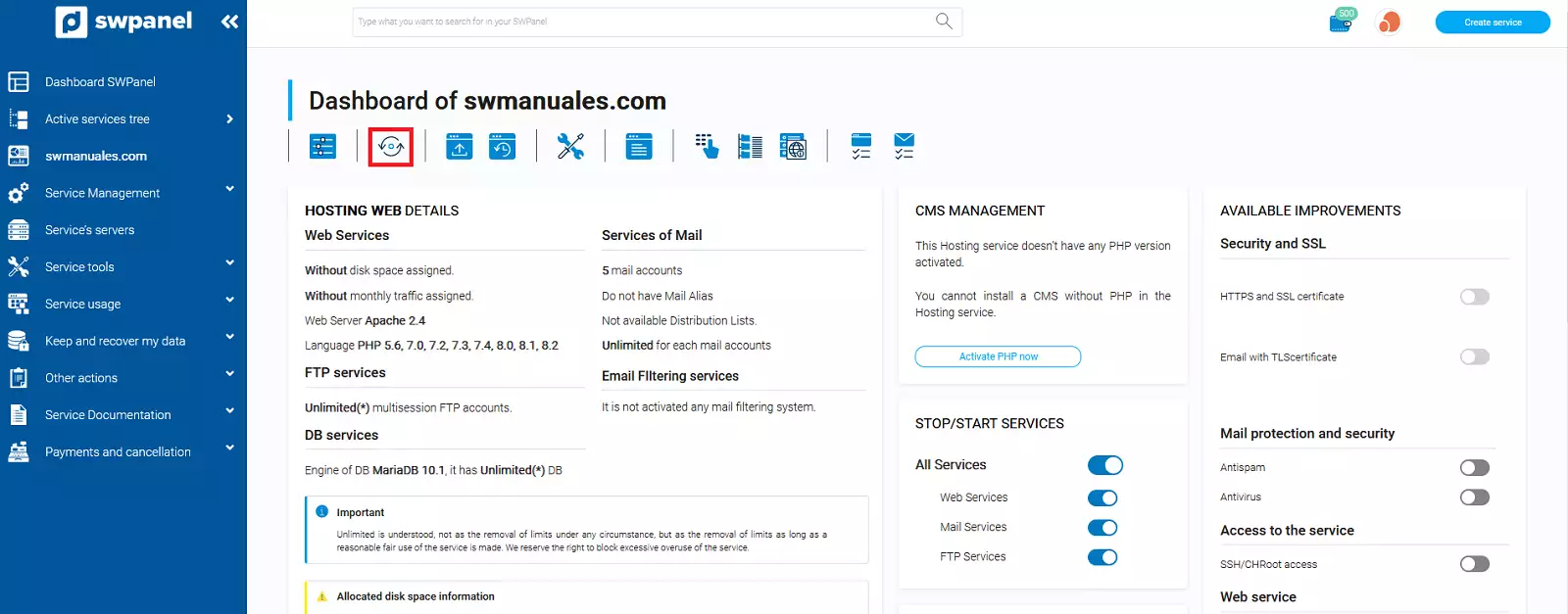
Once inside the Dashboard of the service, you must go to the second menu icon at the top of the Dashboard. If you hover over it, you will see the following text: Click to change the Cloud servers assigned to this service or the Hosting plan type.
In case you want to Modify the template of the Hosting service, you will have to select the new template in the Hosting Templates section and click on Next.
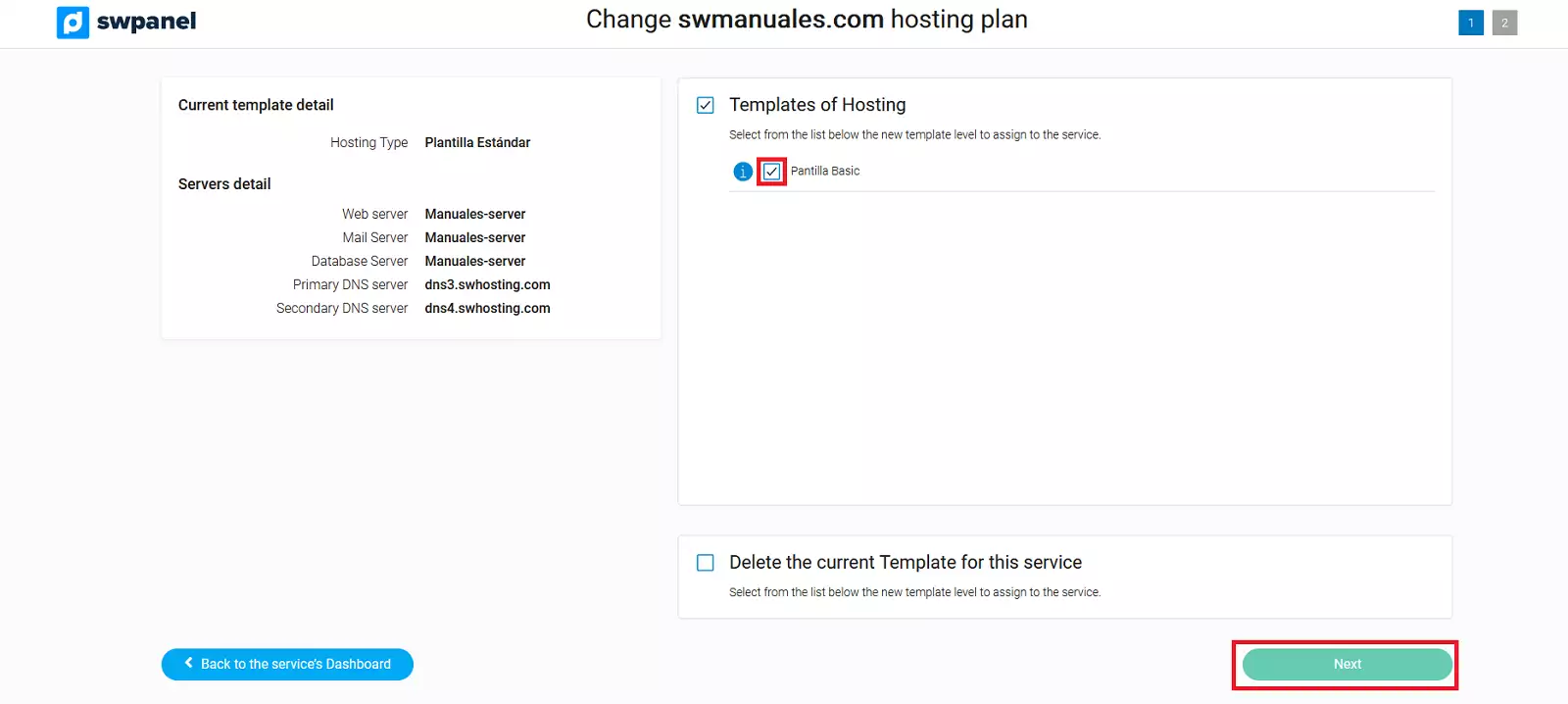
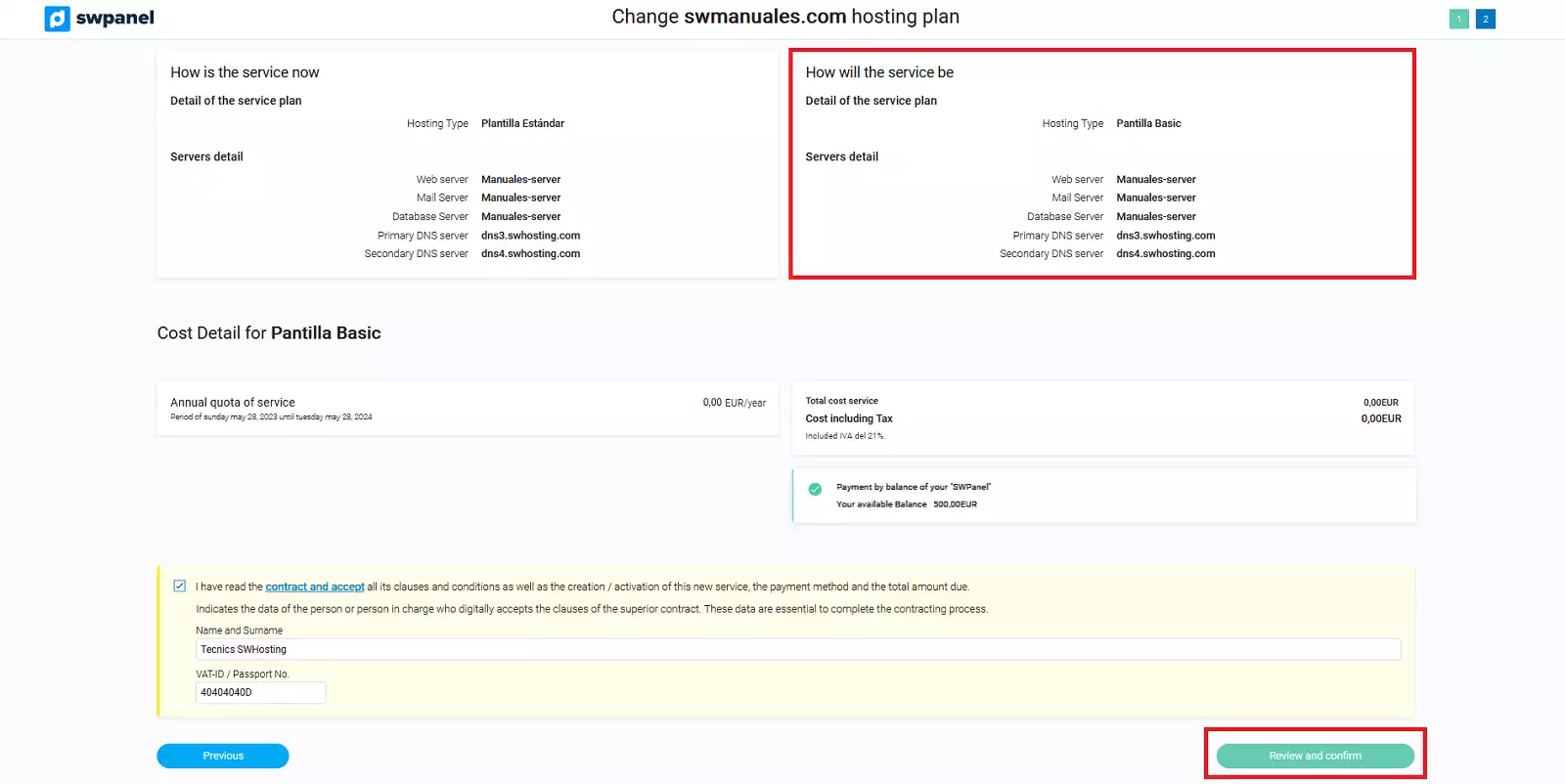
Make sure that the template and the servers in the How the service will look like are the ones you had planned and click Accept and formalize.
Delete Template
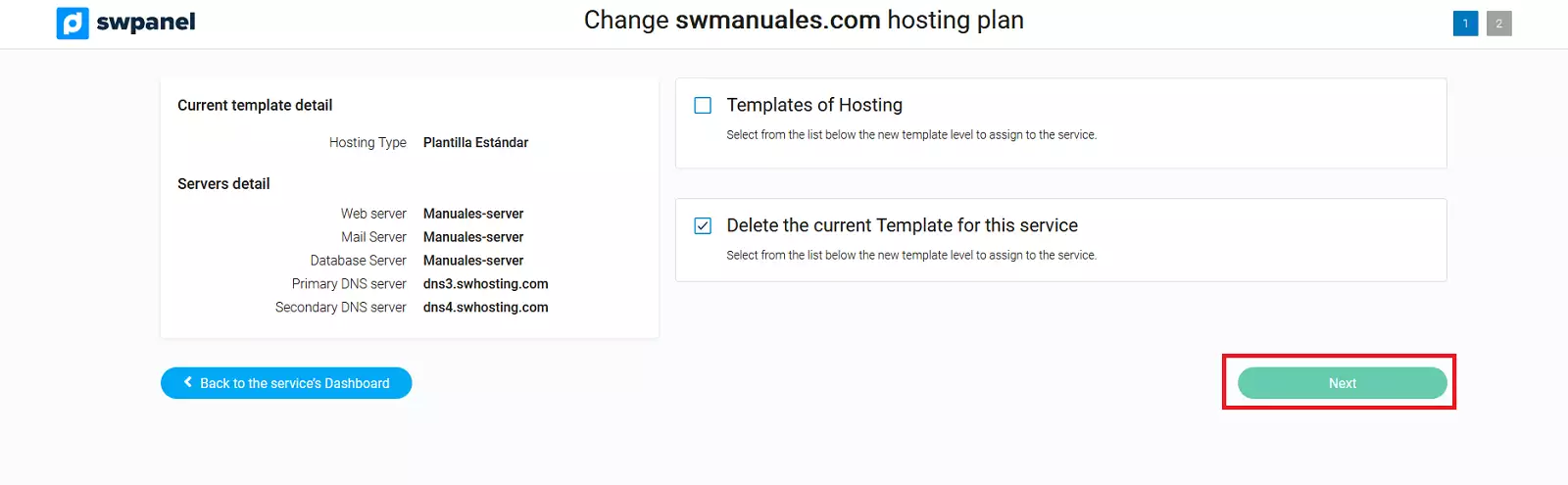
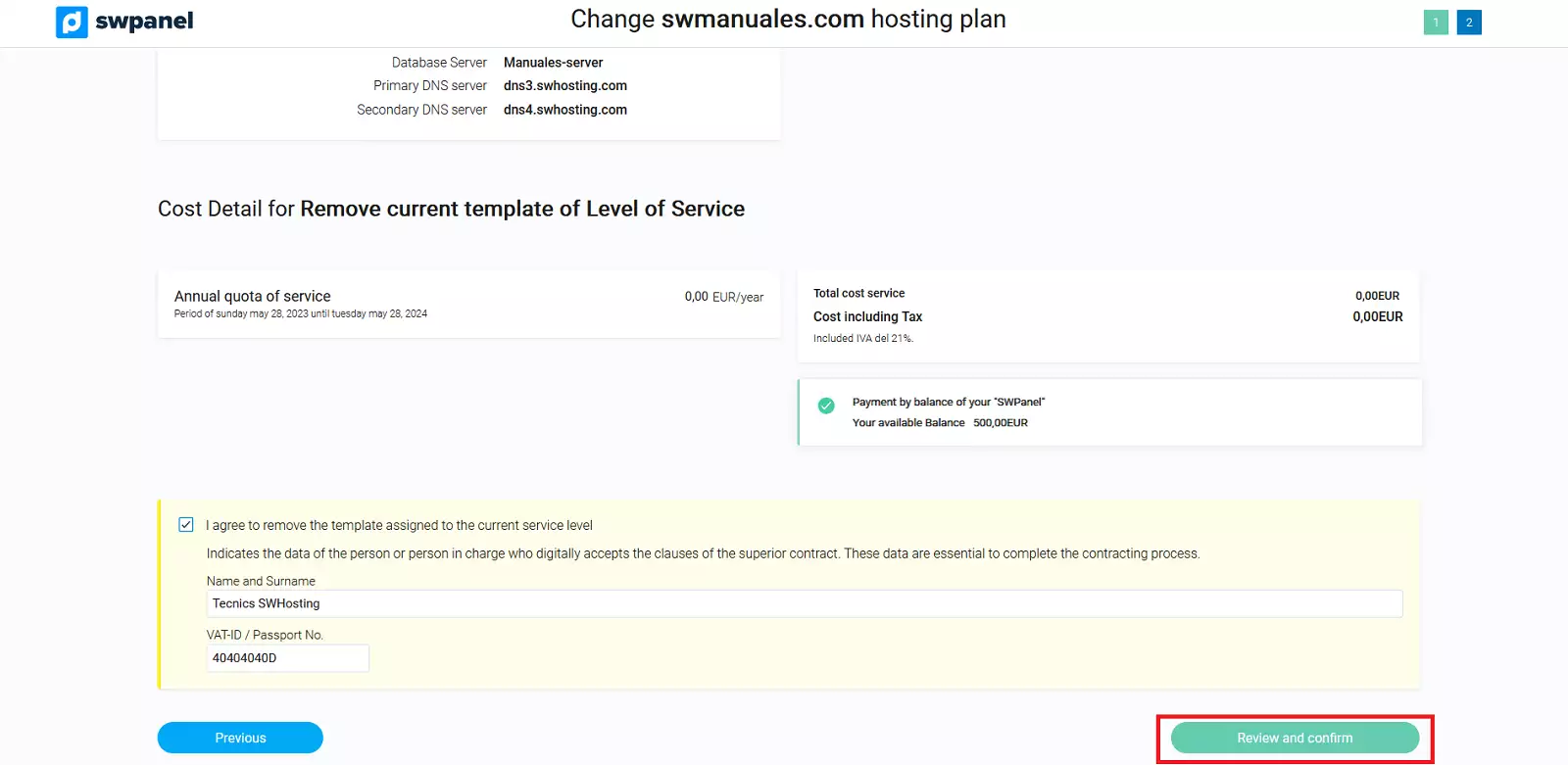
In case you want to Delete the template of the Hosting service, you must select Delete the current Template for this service and click on Next.