How to migrate your WordPress using SWPanel WP Migrator
1. Introduction and summary of the migration process
This manual explains, in a detailed and structured manner, how to migrate a website developed in WordPress from an external provider to a hosting service managed in SWPanel, using the official SWPanel WP Migrator plugin.
What is SWPanel WP Migrator?
SWPanel WP Migrator is a plugin developed specifically to automate the migration of WordPress sites to infrastructures managed from SWPanel. Its function is:
- Connect your source WordPress to your destination hosting.
- Export the site data.
- Transfer it securely using an authentication system based on a token and secret key.
General process flow
The entire process consists of three main phases:
- Installation of the plugin on the source WordPress.
- Generation of the token and secret key from SWPanel.
- Entering credentials into the plugin and starting the export.
When finished, your WordPress will be migrated to the destination hosting.
danger If your website has many images, products, or videos, and certain resource limitations on the source provider, such as memory_limit or max_children, the export is likely to fail, as the SWPanel Migrator plugin is designed for lighter sites. Alternatively, you can use our internal migration tool, which you can find more information about in the manual: 📃 Manual: SWPanel migration tool.
2. Installing the SWPanel WP Migrator plugin
Step 1: Access the WordPress backend
You must access the administration panel of your source WordPress. This is usually done from:
https://tudominio.com/wp-admin
Once inside:
- Go to the left side menu.
- Click on Plugins.
- Press the Add plugin button.
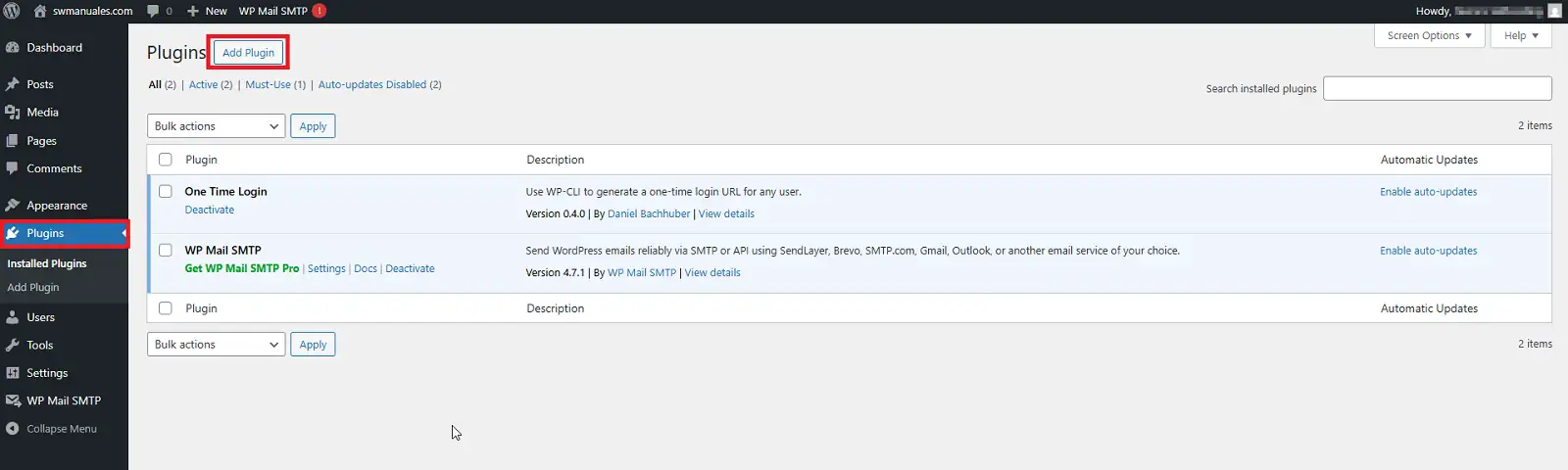
info_capture The screenshot is for illustrative purposes only. It was taken from version 2026.000.0001 on 18/02/2026. It may differ from what is shown in the current version of SWPanel.
Step 2: Search for the plugin
In the plugin search bar (top right):
- Enter the name: SWPanel WP Migrator.
- Wait for it to appear in the results.
- Verify that it is compatible with your version of WordPress.
- Click Install Now.
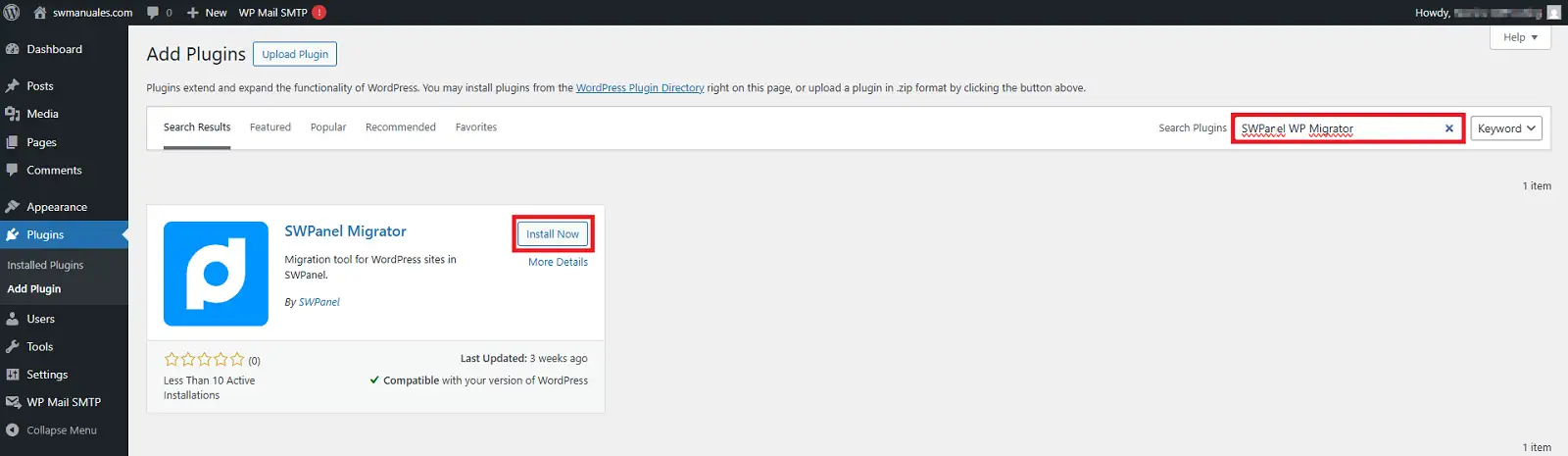
info_capture The screenshot is for illustrative purposes only. It was taken from version 2026.000.0001 on 18/02/2026. It may differ from what is shown in the current version of SWPanel.
Step 3: Activate the plugin
Once the installation is complete:
- Click the Activate button.
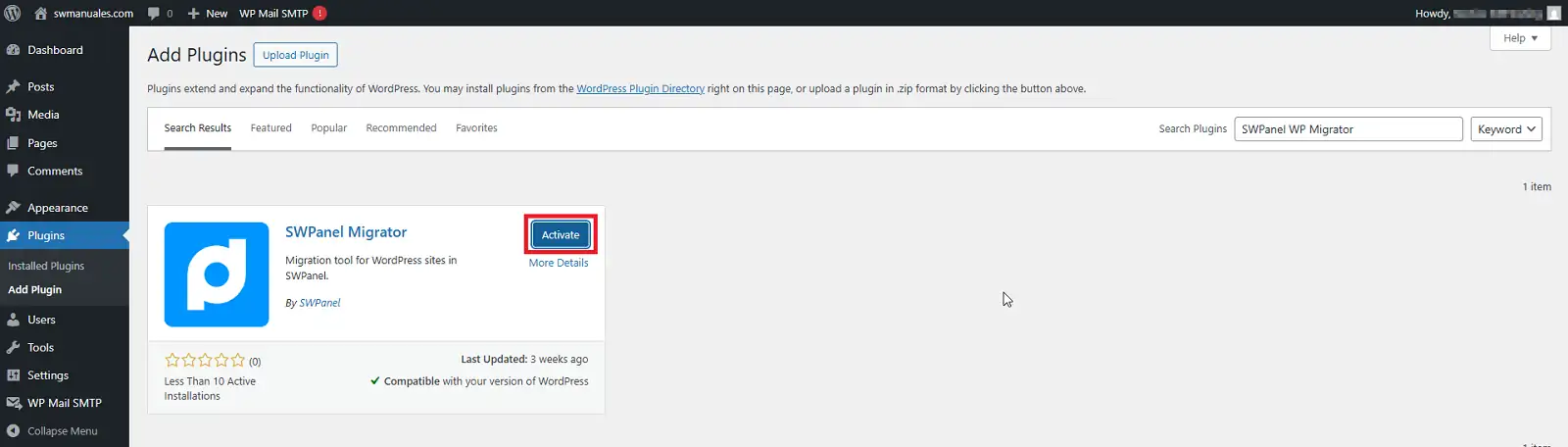
info_capture The screenshot is for illustrative purposes only. It was taken from version 2026.000.0001 on 18/02/2026. It may differ from what is shown in the current version of SWPanel.
3. Generating the token and secret key
To continue with the migration, you need to generate a token and a secret key from your SWPanel account.
We will need to have a SWPanel account to proceed, so if you do not have a SWPanel account, you must follow the manual 📃 Manual: How to register in SWPanel. to register.
Step 1: Access SWPanel
- Log in to your SWPanel account.
- In the left side menu, select:
- Tools
- To migrate websites
- Migrate a website now
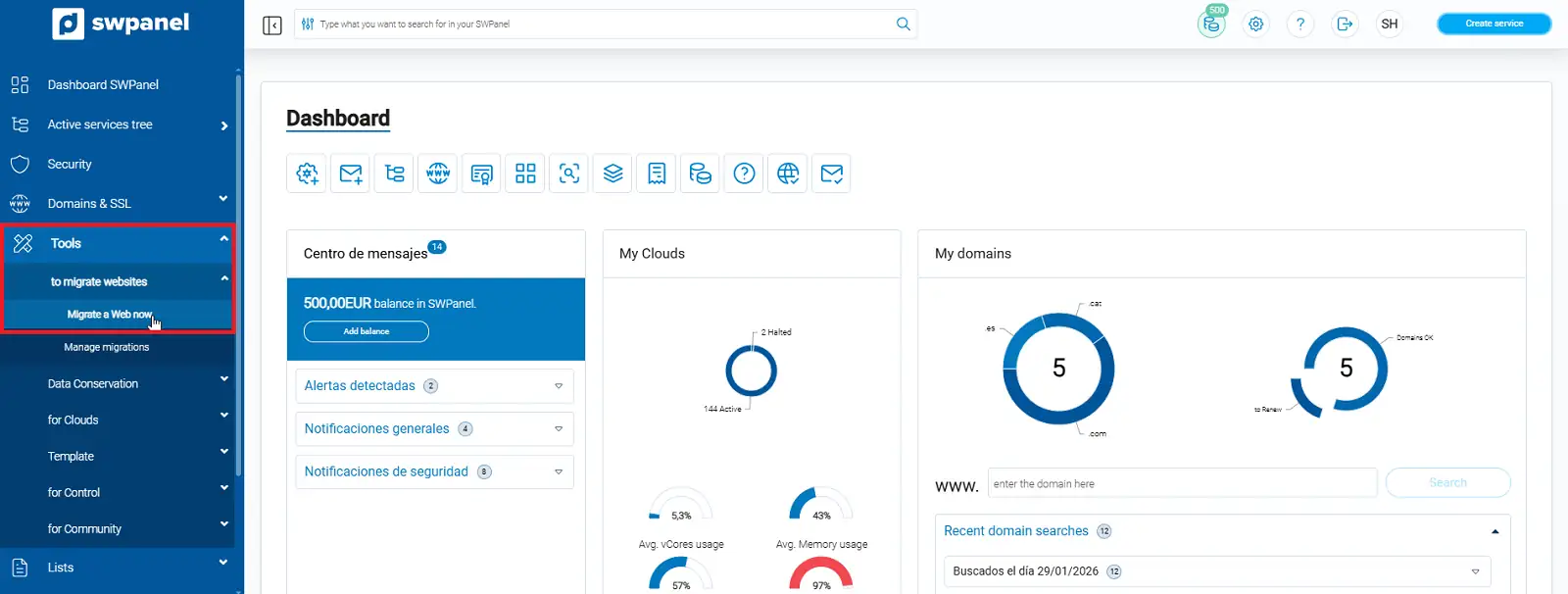
info_capture The screenshot is for illustrative purposes only. It was taken from version 2026.000.0001 on 18/02/2026. It may differ from what is shown in the current version of SWPanel.
Step 2: Select the type of migration
Select the option:
Migrate a WordPress website
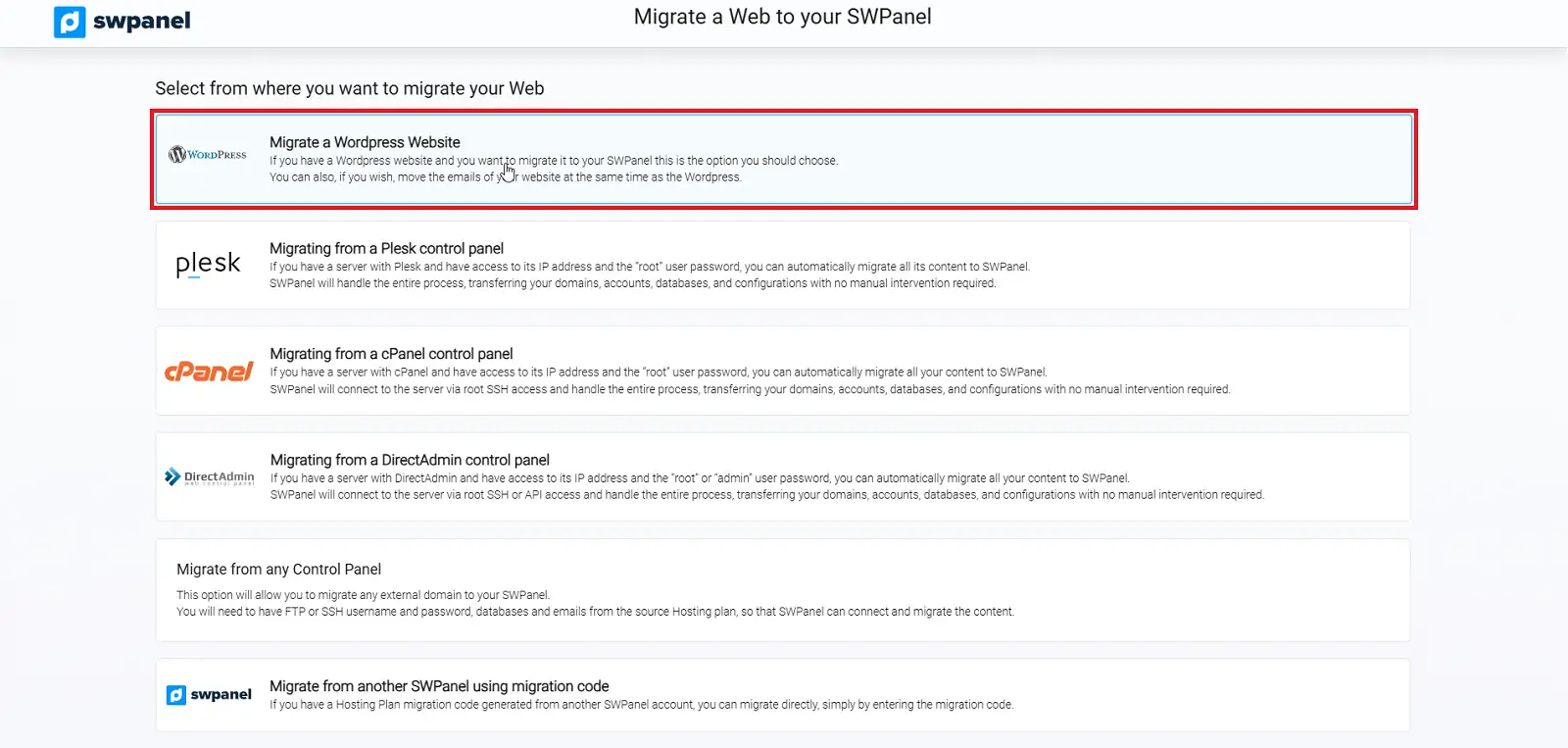
info_capture The screenshot is for illustrative purposes only. It was taken from version 2026.000.0001 on 18/02/2026. It may differ from what is shown in the current version of SWPanel.
Step 3: Configure the source and destination
- Select your source provider (for example, "Others").
- Check the option: Migrate the website to an existing hosting service.
- Enter the name of the destination hosting.
- Select: Move my WordPress website to my new hosting on SWPanel.
This will generate:
- The token
- The secret key
- A quick start guide
You can use the copy to clipboard icon for convenience.
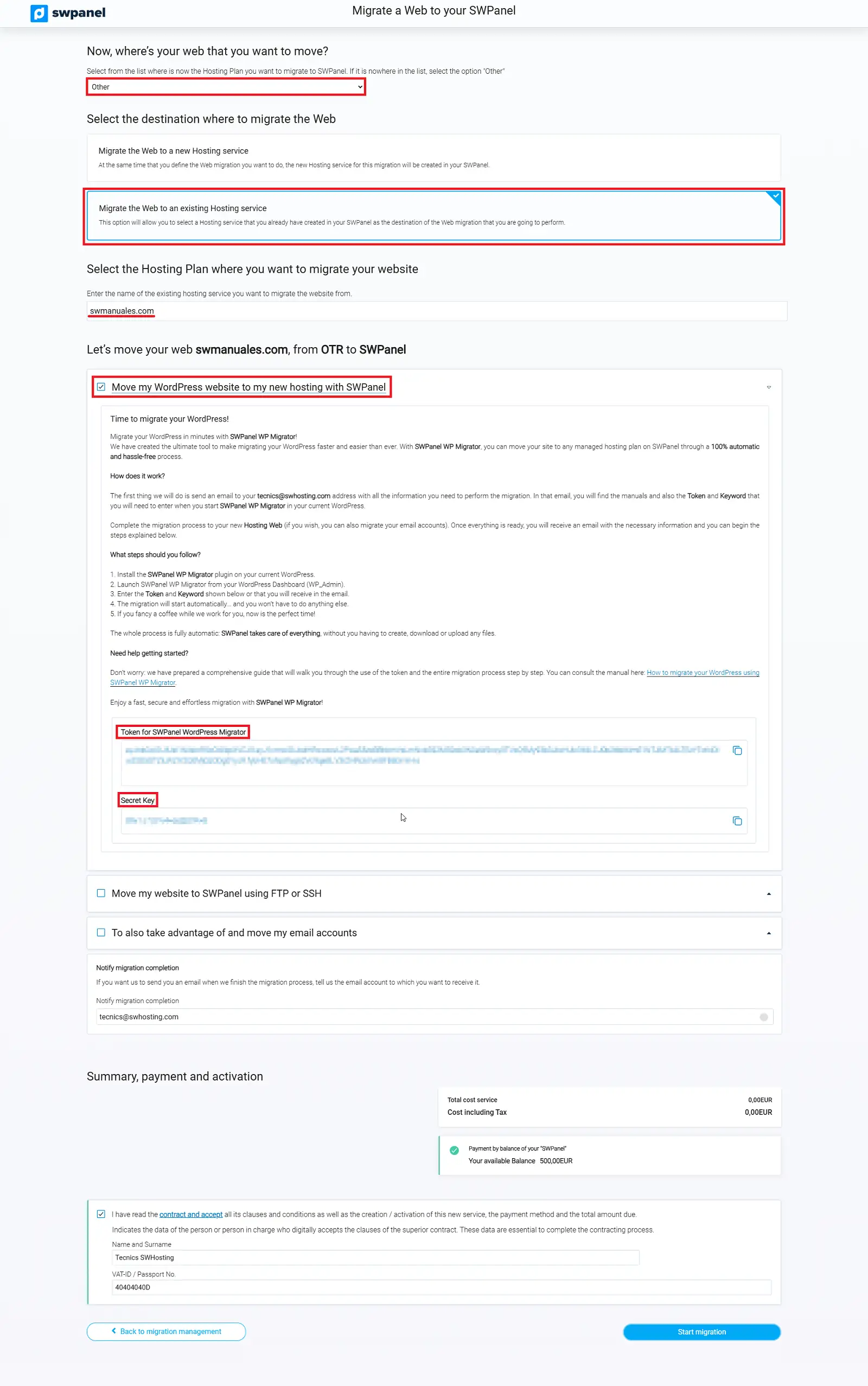
info_capture The screenshot is for illustrative purposes only. It was taken from version 2026.000.0001 on 18/02/2026. It may differ from what is shown in the current version of SWPanel.
4. Enter the token and secret key in the plugin
Step 1: Access the plugin settings
- Return to the source WordPress.
- Go to Plugins.
- Locate SWPanel Migrator.
- Click on Settings.
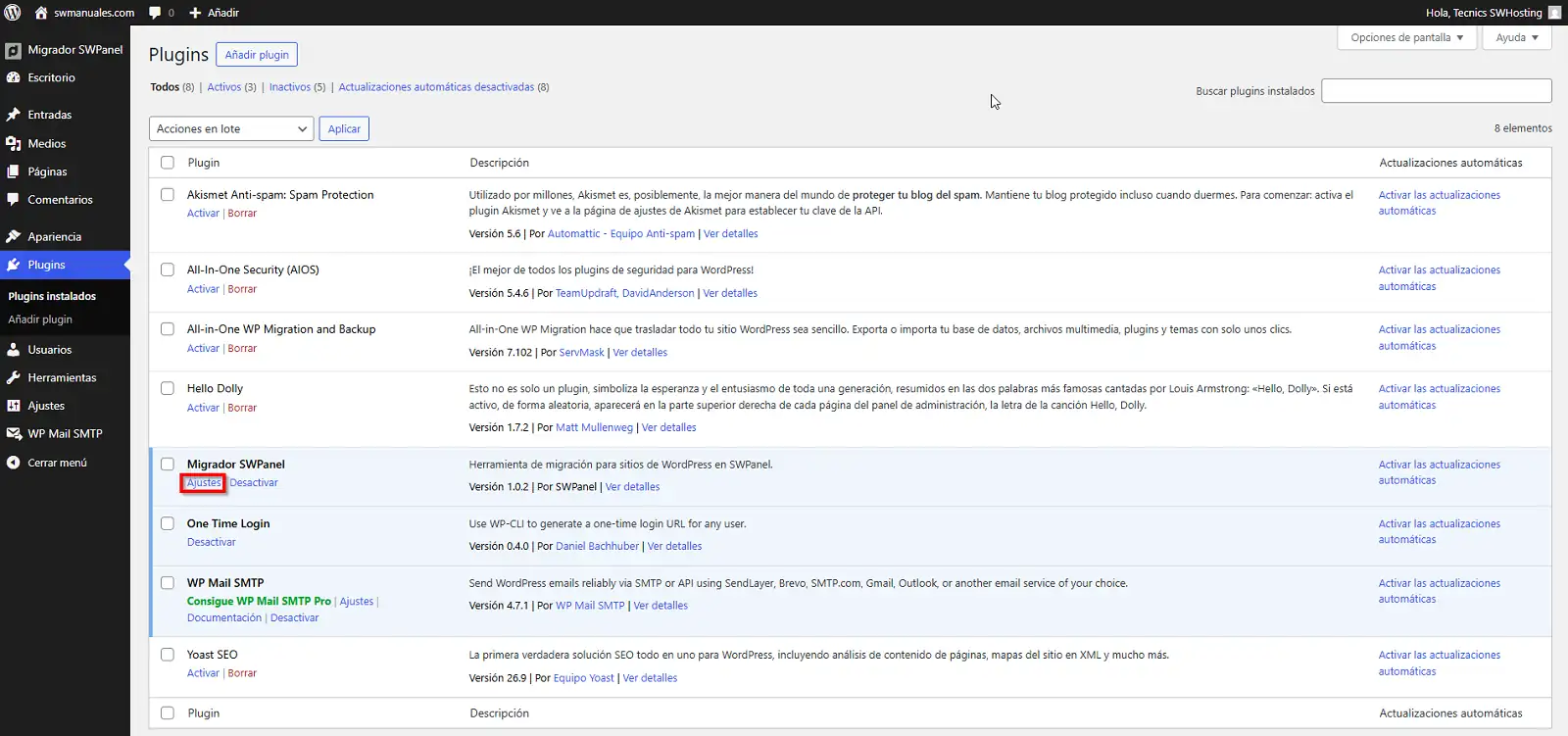
info_capture The screenshot is for illustrative purposes only. It was taken from version 2026.000.0001 on 18/02/2026. It may differ from what is shown in the current version of SWPanel.
Step 2: Enter credentials
- Enter the token in the corresponding field.
- Enter the secret key.
- Click Start export.
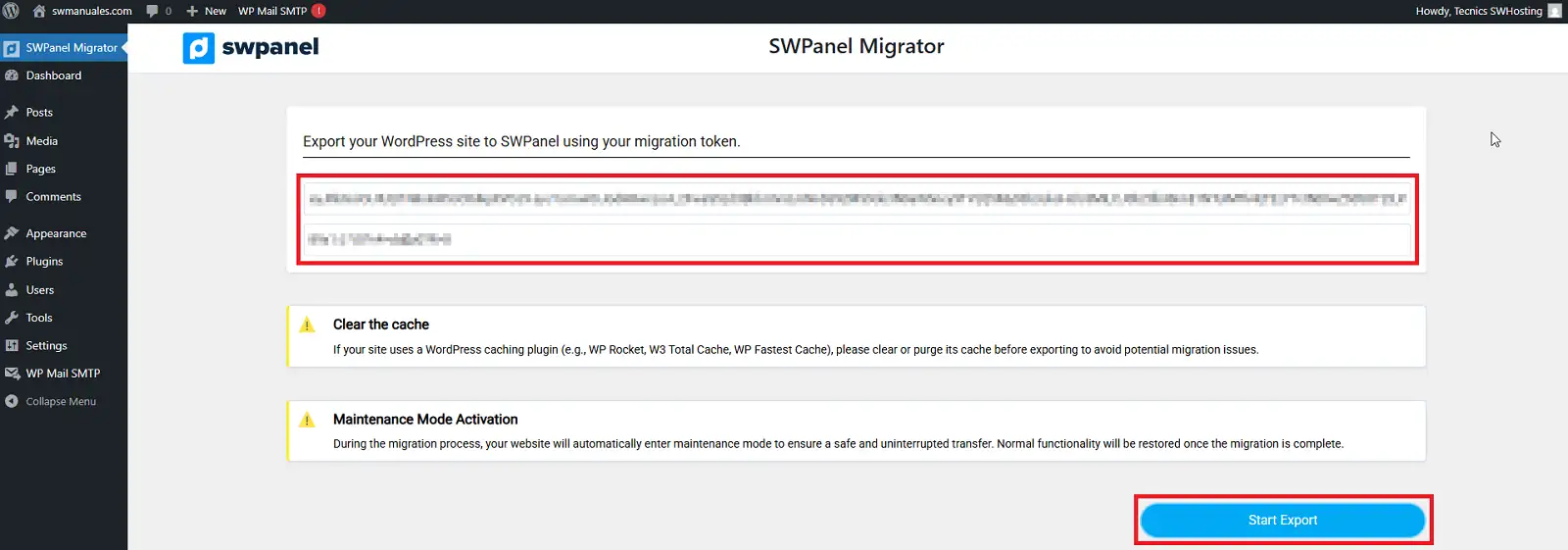
info_capture The screenshot is for illustrative purposes only. It was taken from version 2026.000.0001 on 18/02/2026. It may differ from what is shown in the current version of SWPanel.
Step 3: Monitor the process
During the export, you will be able to see the status of the process via a progress bar.
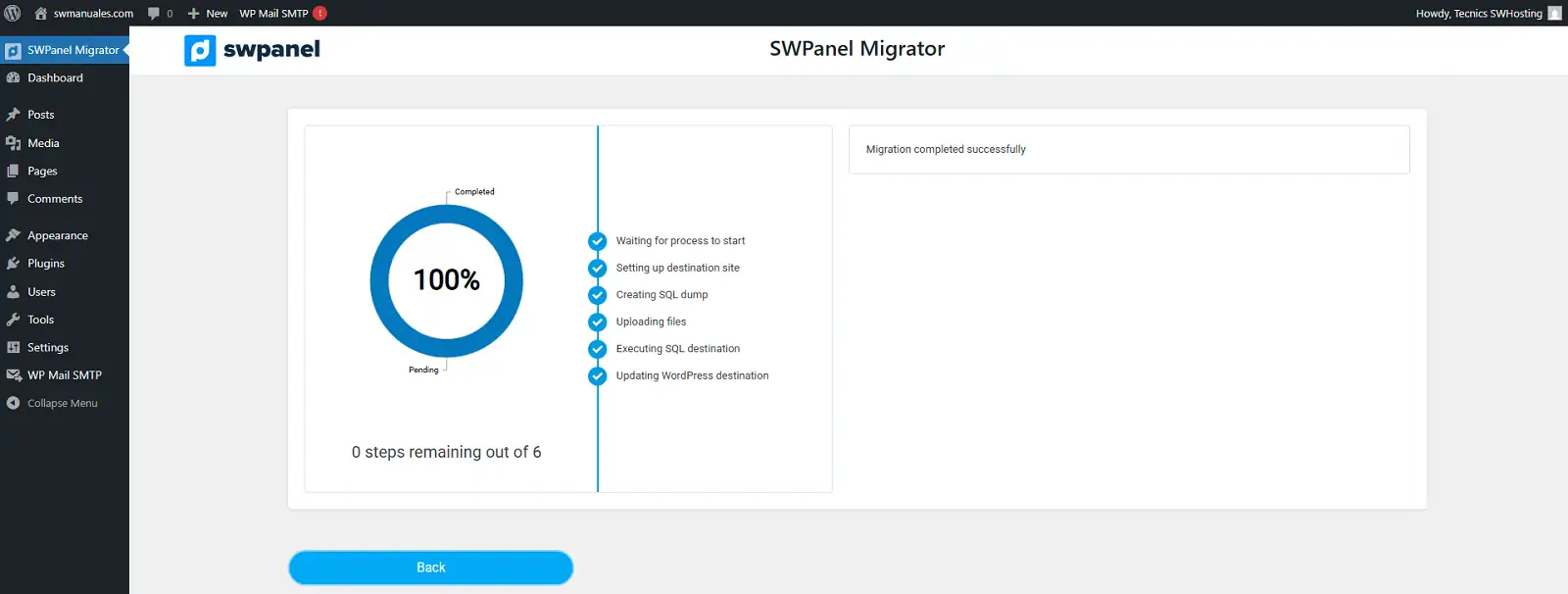
info_capture The screenshot is for illustrative purposes only. It was taken from version 2026.000.0001 on 18/02/2026. It may differ from what is shown in the current version of SWPanel.
When all steps are completed successfully, the migration will be finished.
Once this is completed, our system will send an email to the email associated with your customer account indicating that it has been completed correctly, and providing the corresponding data.
5. Accessing WordPress without modifying the DNS
If you have not yet modified the domain's DNS, you can access the new WordPress by editing your hosts file, forcing your domain to point to the IP of the new server.
This allows you to:
- Test the site before making it public.
- Verify that everything is working correctly.
- Avoid interruptions for users.
You can find out how to do this in the following manual: